How to connect two Google Forms: Step-by-Step guide
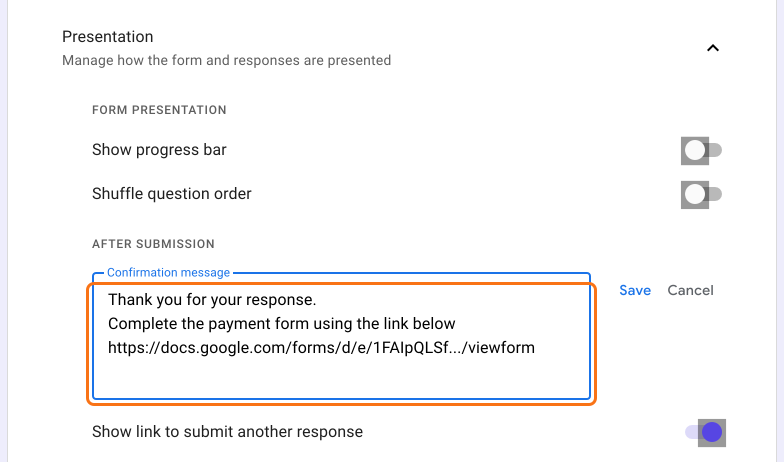
This is a common question from Google Forms users who need one form to lead to another. For example, your registration form has to lead to a payment form and you do not want people to stop after the first one. Google Forms ends with a plain confirmation message. You can paste the second form's link in that message or use sections instead of a second form, but a link leaves people to type their name and email again. With Formfacade, you can redirect them to the second form after submit and prefill it with the answers from the first. They will go straight on to the next form with their details already there. Even better, both forms will have your own branding instead of Google's.
Let's start. Here are four ways to connect two Google Forms. To try the last two, create your form with Formfacade.
- The Simplest Approach: Add the link in the confirmation message
- The Native Solution: Use sections instead of a second form
- Redirect and Customize: Use Formfacade for a seamless handoff
- Advanced: Prefill the second form with submitted data of first form
1. The Simplest Approach: Add the link in the confirmation message
2. The Native Solution: Use sections instead of a second form
- Go to section based on answer: Route users to specific sections depending on their responses.
- Set section flow: At the bottom of each section, use the dropdown ("Continue to next section") to direct users to another section or submit the form after that section.
3. Redirect and customize: Use Formfacade for a seamless handoff
- Automatically redirect users to another Google Form URL (or any other webpage) after submission.
- Add a styled, branded link on the thank-you page. You can customize text, colors and layout to match your brand, making the transition between forms seamless and professional.
- On the page that opens, name your form, click Create form and click Proceed.
- You will land on the form's "Edit" tab, with the "Prefill & email" dialog open. Click No.
- Scroll down to the end of the form and click on the gear icon on the last "After page" row, above the Submit button. It says "After page 1" on a form with one page. The panel can take a few seconds to open, so click once.
- Button settings page will be displayed. Click On submit. Select Redirect to a webpage, enter the link of your second form and click Save.
- Click on "Share" tab and share this form's link. The redirect works through this link, not through the Google Forms link.
4. Advanced: Prefill the second form with submitted data of first form
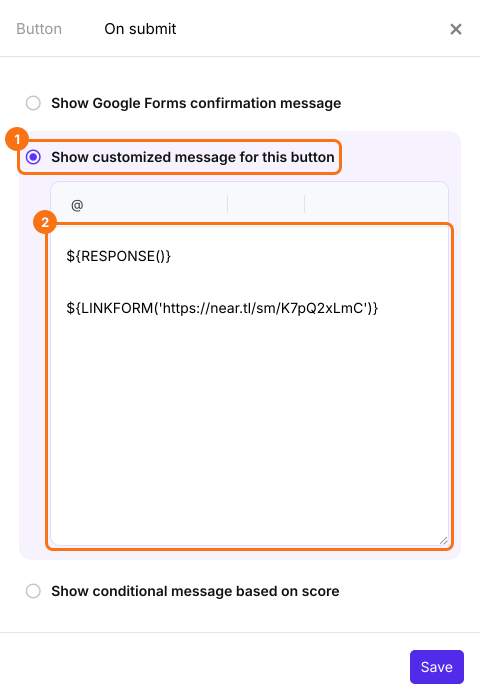
- Scroll down to the end of the form and click on the gear icon on the last "After page" row, above the Submit button. It says "After page 1" on a form with one page. Click On submit and select Show customized message for this button.
- Type the formula in the message, with the link from the "Share" tab of your second form, and click Save.
- Configure the mapping in both forms for common fields like Name, Email, Phone Number, Address and Signature so that they get automatically prefilled.
- For other fields, simply keep the same field names in both forms. They will be automatically prefilled in the second form.
Summary
Last updated: