How to change your order form menu every week?

"We have a school lunch program that varies each week."- Google Docs Editors Community

This is a common question from school lunch programs and caterers and 22 people on Google's forum have asked about it. For example, if you run a school lunch program, the food changes a little every week and teachers need a form to order from. Copying last week's Google Form gives you a new link and a new response sheet each time. Editing the old one means retyping the choices and last week's answers stay mixed in with this week's. With Neartail, you can keep one form and one link and swap the dishes each week. Teachers open the link they already have and see only this week's dishes. Even better, Sales by product keeps each week apart, so last week's orders stay out of this week's count.

Let's start. Create your order form and follow the steps below.

1. Name your order form
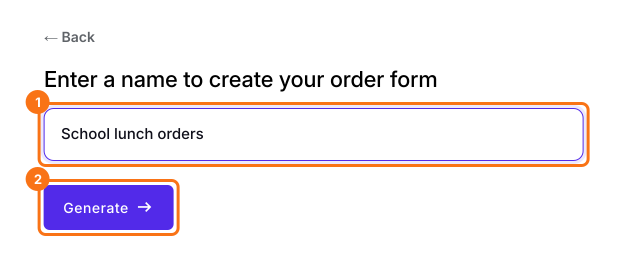
On the page that opens, click Enter your form name, type your form's name, click Generate and wait about a minute. Check the outline it suggests and click Proceed. Once you create the form, you will land on the form's Edit tab. If it asks "Do you want to preview this form?", click No. Click on each product and check its name and price, because a generated product can have no name and a price of 0.
Neartail's screen to name your order form, with School lunch orders typed in and the Generate button marked

2. Hide last week's dishes

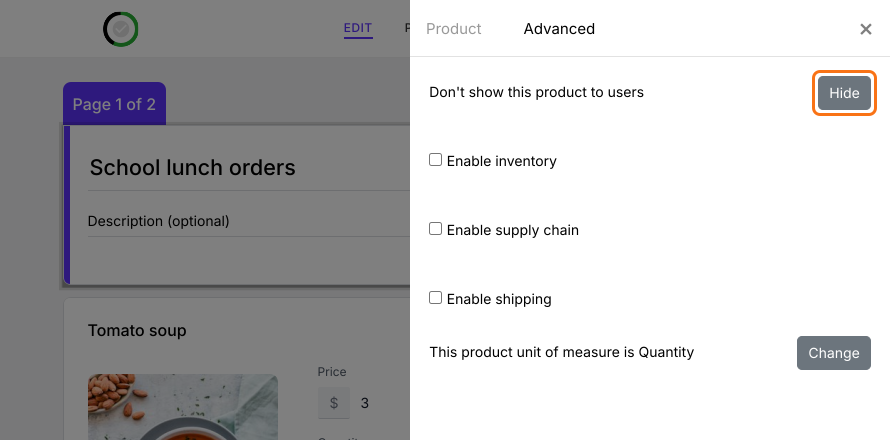
In the EDIT tab, click a dish you aren't serving, click the gear at the bottom of its card, open Advanced and click Hide. Another week, click Show in the same place to bring it back.
The Tomato soup product behind its settings panel, on the Advanced tab, with the Hide button marked beside Don't show this product to users

3. Add this week's dishes

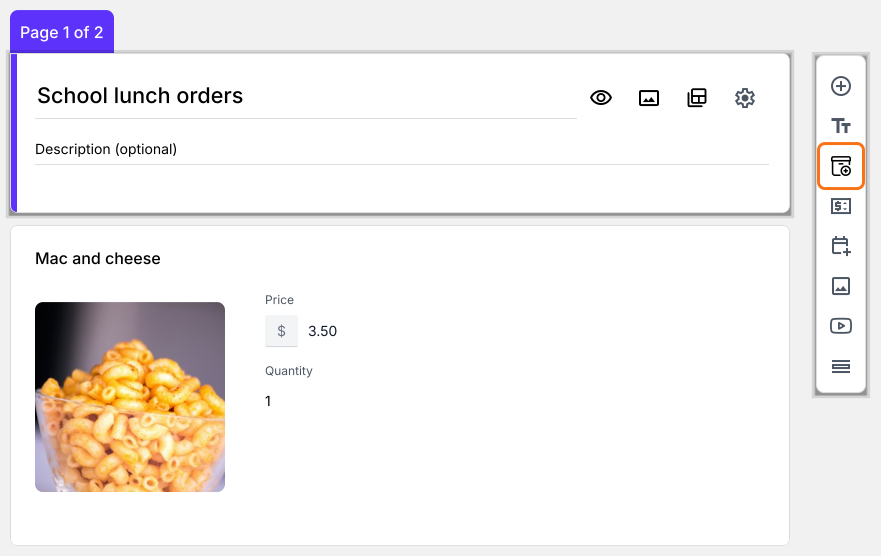
Click Add product in the toolbar on the right, then type the dish's name and price.
The School lunch orders editor with a new Mac and cheese product at $3.50 and the Add product button marked in the toolbar

4. Teachers open the same link

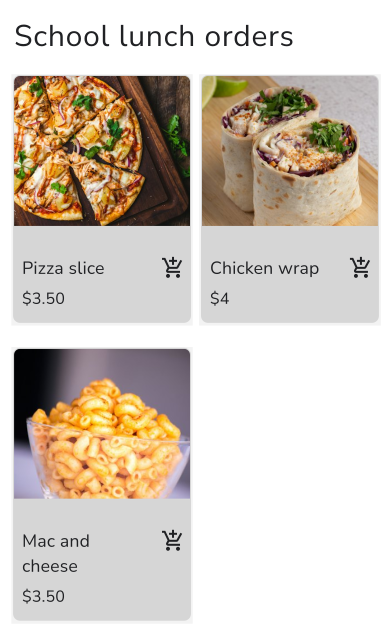
The first time, click SHARE, click Link, click Copy and send the link to your teachers. After that, you don't need a new link. Teachers open the one they already have and see only this week's dishes.
The School lunch orders form on a phone with Pizza slice at $3.50, Chicken wrap at $4 and Mac and cheese at $3.50

5. Keep each week's orders apart

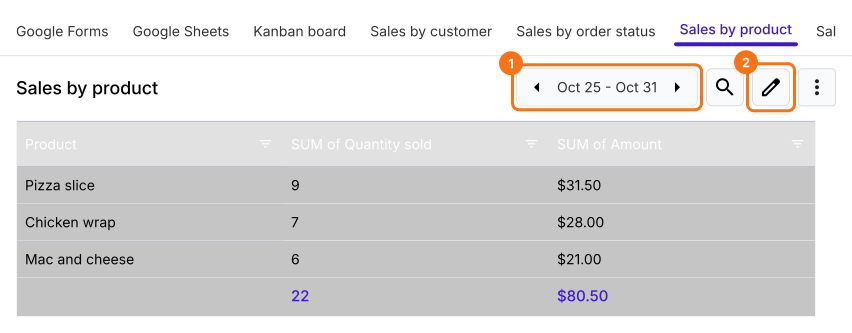
In ORDERS, click Sales by product. It opens on the whole year. To see one week, click the pencil, select Weekly under Select the reporting period, click Next, Next and Finish. The arrows beside the dates then move from week to week, so last week's orders stay out of this week's count.
The Sales by product report for Oct 25 to Oct 31, with the dates and the pencil marked, showing 9 Pizza slices, 7 Chicken wraps and 6 Mac and cheese, 22 in all for $80.50

Summary

If your menu changes every week, copying the form means a new link each time and editing it mixes last week's answers with this week's. With Neartail, you keep one form and one link. Hide last week's dishes, add this week's and the report keeps each week's orders apart. Create your order form and complete the steps above.

Last updated: