Form changes are not reflected in the embedded form. How can I fix this?
"Link not reflecting updated form"- Google Docs Editors Community
This is a common question from Google Workspace users who keep their form on their website. If you add a question to your Google Form, you want your visitors to see it. Instead your page still shows the old form. You reload the page, clear your browser's cache and paste the embed code again, but the new question doesn't appear. Meanwhile people keep filling the old form and you miss the answer you added the question for. To fix it, make your change in the form your page uses, open it in Formfacade's editor and reload your page.
1. Open the form your page uses
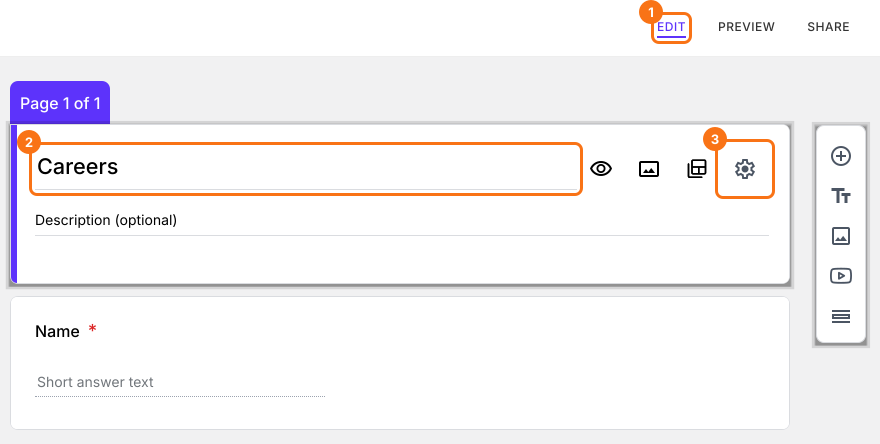
Your page may not be using the form you changed. If you imported your form, Formfacade made a copy of your form and your page uses the copy. In Google Drive and at the top of Formfacade, the copy is named Blank Formfacade form, though its questions and form title are yours. A change in your original form doesn't reach it. To open the form your page uses, open your form in Formfacade and click EDIT. Click the form's title, click the ⚙️ icon on the title card, click the Advanced tab and click Launch next to Edit this form with Google Forms. Make your change in the form that opens.
2. Open the form in Formfacade's editor
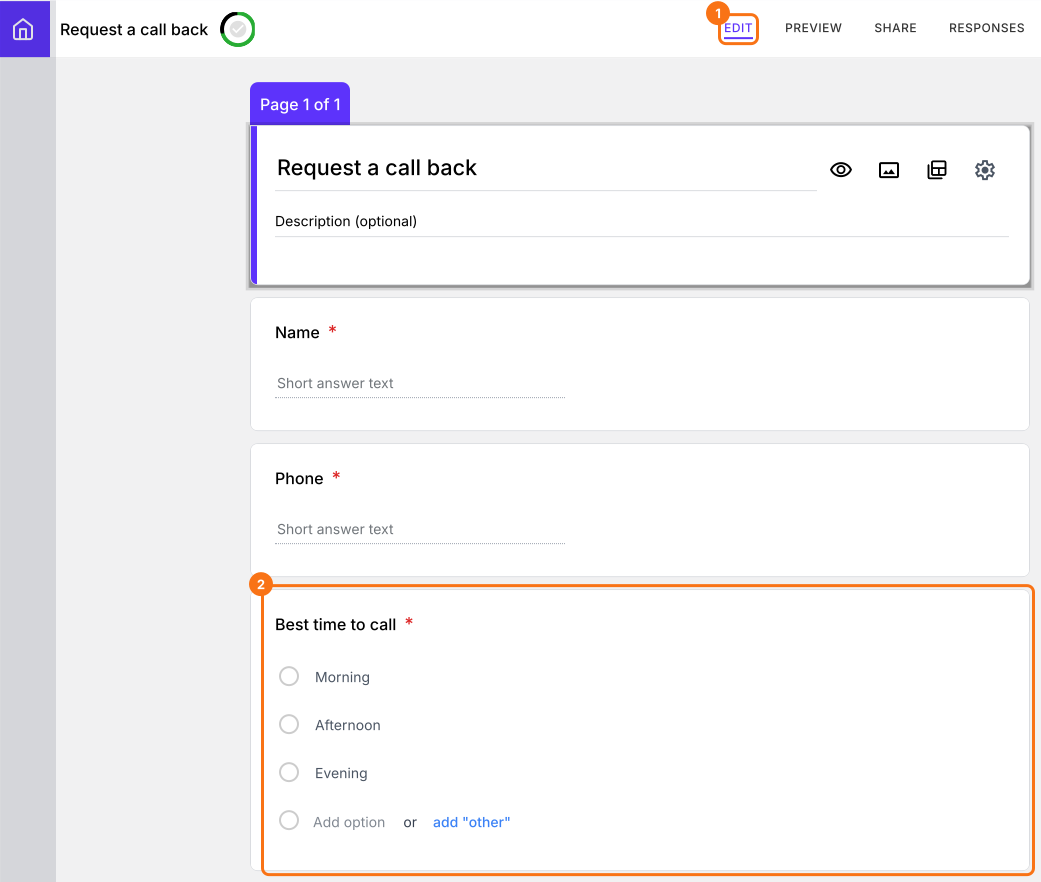
Your page shows the questions Formfacade saved from your Google Form. Formfacade doesn't read your Google Form each time someone opens your page. It reads it when you open the form in its editor. Go back to Formfacade, click EDIT and wait for your questions to appear. If it is already open, reload the page. Your change is now on the screen. Reload your page to see it there too. For a moment you may see the old form while the page loads.
3. Check the embed code on your page
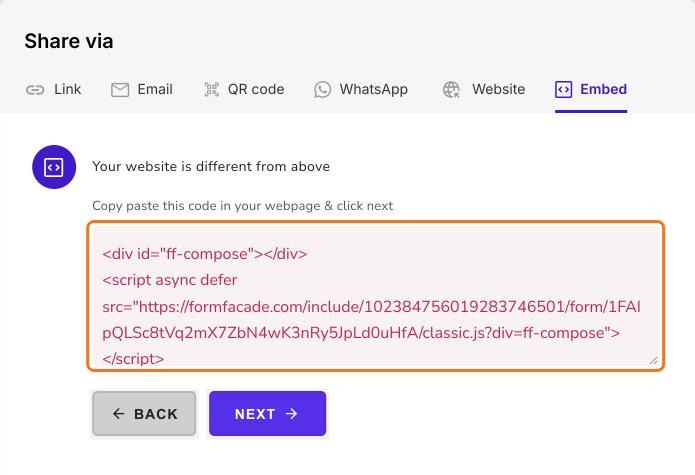
If your page still shows the old form, it may be using a different form. Each time you import a form, you get a new copy with its own embed code. Click SHARE, then Embed and choose your website. Compare this code with the code on your page. If they are different, paste this code in place of the old one.
Summary
If you change a form that is on your website, your visitors need to see the change and reloading or clearing your cache won't bring it. With Formfacade, make your change in the form your page uses, open it in Formfacade's editor and reload your page. A change you make in Formfacade's editor reaches your page with no extra step. If you have any questions, write to support.
Last updated: