Form responses are not recorded in Google Forms. How can I fix this?
"Form responses not recorded, and respondents have response receipts."- Google Docs Editors Community
This is a common question from Google Workspace users who work from their Google Form's responses. If your form is on your website, you expect each answer to appear in your Google Form and the Sheet linked to it. When your Google Form shows no responses, it looks as if people's answers are lost. You may ask them to fill the form again or check with each one by hand. Their answers are recorded in Formfacade. To fix it, turn on Submit to Google Forms under Responses and send the missed responses from the Kanban board.
1. Turn on Submit to Google Forms
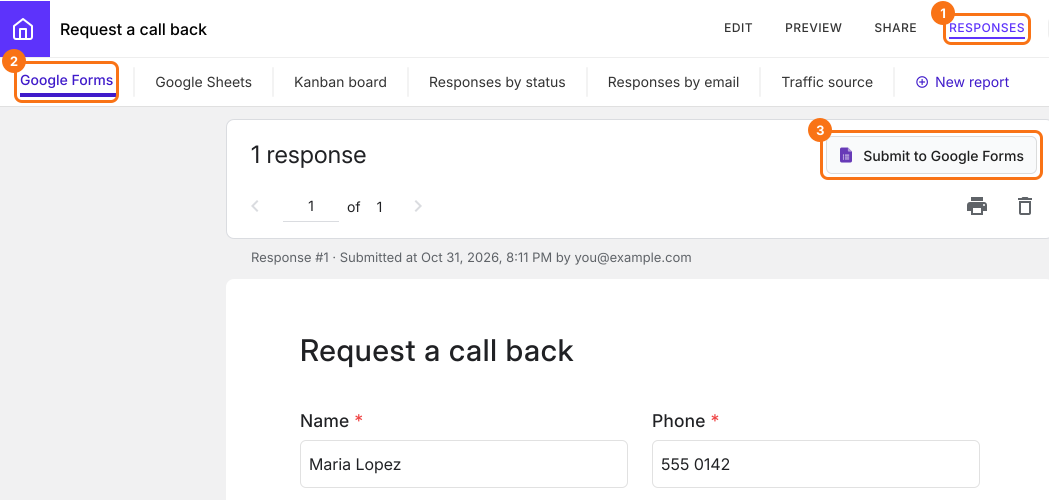
Open your form in Formfacade and click RESPONSES, then Google Forms. Each response from your page is here, even when it didn't reach your Google Form. If you see the Submit to Google Forms button, responses from your page are not being sent to your Google Form. Click it, then Proceed. Each new response now goes to your Google Form too.
2. Open the Google Form that gets your responses
The button now says View in Google Forms. Click it to open the form that gets your responses. If you imported your form, this is Formfacade's copy of your form, named Blank Formfacade form in Google Drive. Your responses go to the copy and your original form stays empty. To use a Sheet, link it to this copy. If you link a Sheet from the Google Sheets tab under RESPONSES instead, new responses reach it only when you click Sync to Sheets.

3. Find the responses that were not sent
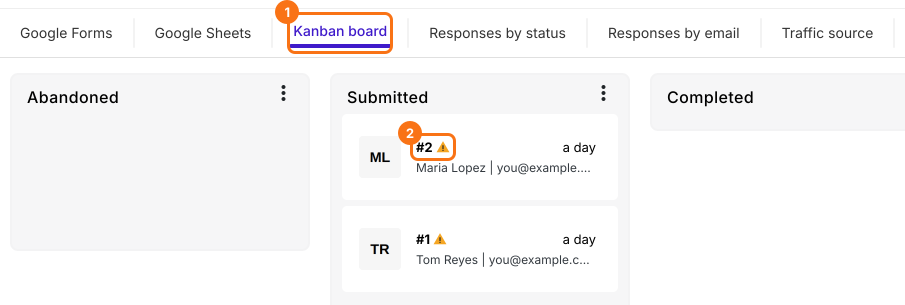
Proceed only covers new responses. Click Kanban board. A response that isn't in your Google Form has a warning sign next to its number. If Google Forms refuses a response later, for example because the form is closed or a required question has no answer, you see the same sign and get an email that says Google Forms submit failed.
4. Send a response to your Google Form
Click the response. Under Additional Details, the Google Forms row says Not submitted. Click the icon next to it. When the response reaches your Google Form, the row says Submitted. Responses from before March 21, 2025 don't show the sign or the icon.

5. Check if your Google Form asks people to sign in
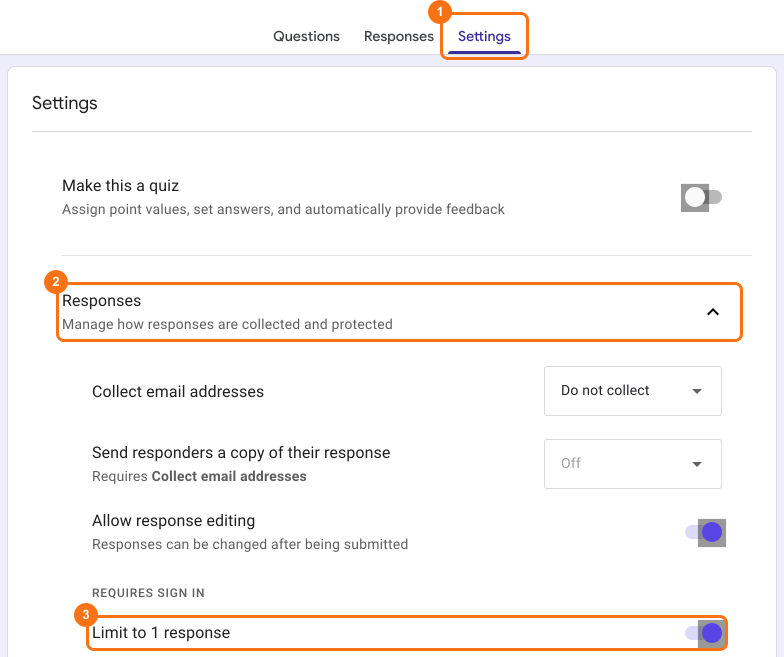
If your Google Form asks people to sign in, for example with Limit to 1 response on, Formfacade can't send the response for them. They have to submit it on Google Forms' own page. Turn that setting off in your Google Form. See how.
Summary
If you work from your Google Form's responses, an empty form looks as if answers are lost and asking people to fill it again costs you time. With Formfacade, each response is recorded in Formfacade. Turn on Submit to Google Forms so that new responses reach your Google Form and send the ones that were missed from the Kanban board. If you have any questions, write to support.
Last updated: