How to add a calculated field in Google Form?
This is a common question from Google Forms users who take orders. For example, the total depends on the quantity, the price and the shipping. Google Forms cannot work this out, so users do not see what they have to pay until you reply to them. You have to open each response, add it up yourself and write back. With Formfacade's calculate field option, your users will see the total in real-time as they fill in the form. Even better, you can add conditional logic and show an order summary before they submit.
Let's start. Create your form and follow the steps below.
Calculated fields allow you to compute a field with values from other fields. Calculated fields can perform arithmetic on number fields, manipulate text & date. For example, you can calculate the total amount in order form based on the order quantity and shipping option chosen by the user.
Important
We have simplified the calculations for standard use cases such as calculating total amount and displaying order summary in order forms, calculating scores and providing verbal assessments for surveys and questionnaires.
Order forms
How to add calculations in Google Forms?
Let's create a simple order form and learn how to add a calculated field to compute and display the order amount to the user filling the form. Users can order one or more bottles of perfume using the order form. The standard price is $60, but if they order 10 or more bottles of the perfume, the price per bottle is $50. There is a standard shipping fee of $25, but this fee is waived off for orders above $150.
Calculations to be added in the order form:
Product price = $60 for < 10 bottles of perfume; $50 for >=10 bottles of perfume
Order amount = Quantity * Price
Shipping fees = $0 for order amount > 150; $25 for order amount =< 150
Total amount = Order amount + Shipping fees
Add the questions in the Edit tab
- On the page that opens, name your form, click Build form and click Proceed. It can take about a minute.
- You will land on the form's "Preview" tab.
- Click on "Edit" tab

- Click on the + icon in the toolbar on the right and add a short answer question for each of these fields: How many perfumes would you like to order?, Order amount, Shipping fees and Total amount
- For the How many perfumes would you like to order? question, click on the ⚙️ icon, select the Answer tab, click Configure under Validation, select Number and select Is number. Click Save.

Simple calculation
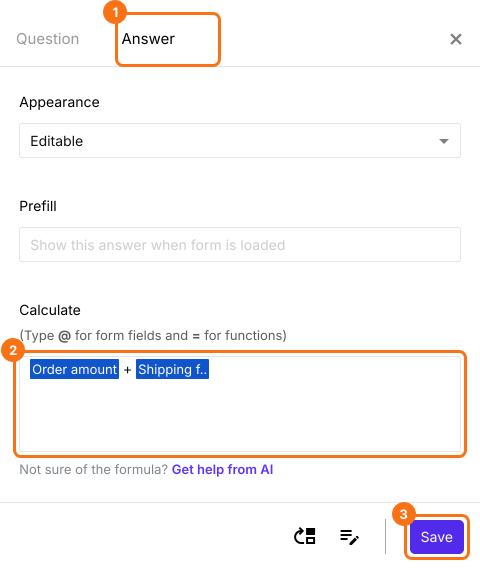
We have to add the order amount and shipping fees to calculate the total amount. It's a simple addition.
Order amount + Shipping fees
In the Edit tab, click on the Total amount field, then click on the ⚙️ icon. Field settings screen will be displayed. Select the Answer tab and write the above formula in the Calculate option. Click Save.
To use a form field in the calculation, type @ and you will see the list of all the fields in the form. Select the required form field to add the field. You will see the display name of the field, but internally it uses the entry id for the calculations. If no list appears on your form, make your form here instead: name it, click Create form and click Proceed, close the Assign points dialog and add these questions. The @ list opens on a form made there.
Conditional logic
The standard shipping fee is $25, but this fee is waived off for orders above $150. To implement this calculation, we have to check if the order amount is greater than 150.
You can use the IFS function to write conditional logic. IFS function evaluates multiple conditions and returns a value that corresponds to the first true condition. The syntax for the IFS function is:
IFS(condition1, value1, [condition2, value2, …])
where
- condition1 - The first condition to be evaluated.
- value1 - The returned value if condition1 is TRUE.
- condition2, value2, … - Additional conditions and values if the first one is evaluated to be false.
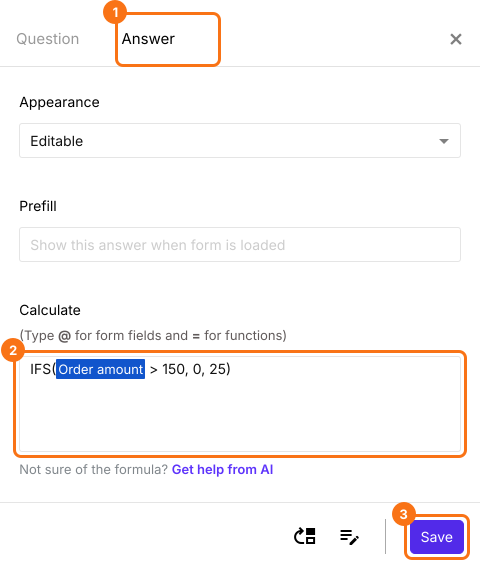
The formula to calculate the shipping fees is:
IFS(Order amount > 150, 0, 25)
In the Edit tab, click on the Shipping fees field, then click on the ⚙️ icon. Field settings screen will be displayed. Select the Answer tab and write the above IFS formula in the Calculate option. Click Save.
Note: To use a form field in the calculation, type @ and you will see the list of all the fields in the form. Select the required form field to add the field. You will see the display name of the field, but internally it uses the entry id for the calculations.
Conditional logic + Calculations
Order amount = Quantity * Price
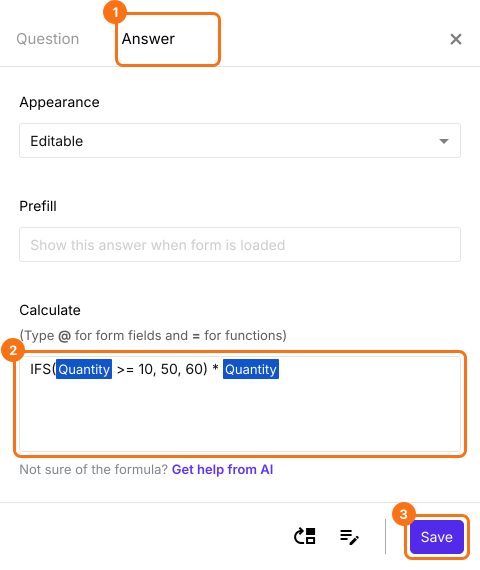
Quantity is entered by the user. Based on this quantity entered, we have to calculate the price. The standard price is $60, but if a user orders 10 or more bottles of the perfume, the price per bottle is $50. We can use the IFS function to determine price and then multiply it with quantity to calculate the order amount.
IFS(Quantity >=10 , 50, 60) * Quantity
In the Edit tab, click on the Order amount field, then click on the ⚙️ icon. Field settings screen will be displayed. Select the Answer tab and write the above formula in the Calculate option. Click Save. Here, Quantity is the How many perfumes would you like to order? question.
Note: To use a form field in the calculation, type @ and you will see the list of all the fields in the form. Select the required form field to add the field. You will see the display name of the field, but internally it uses the entry id for the calculations.
The user filling the form will see the order amount, the shipping fees and the total amount as they enter the quantity.
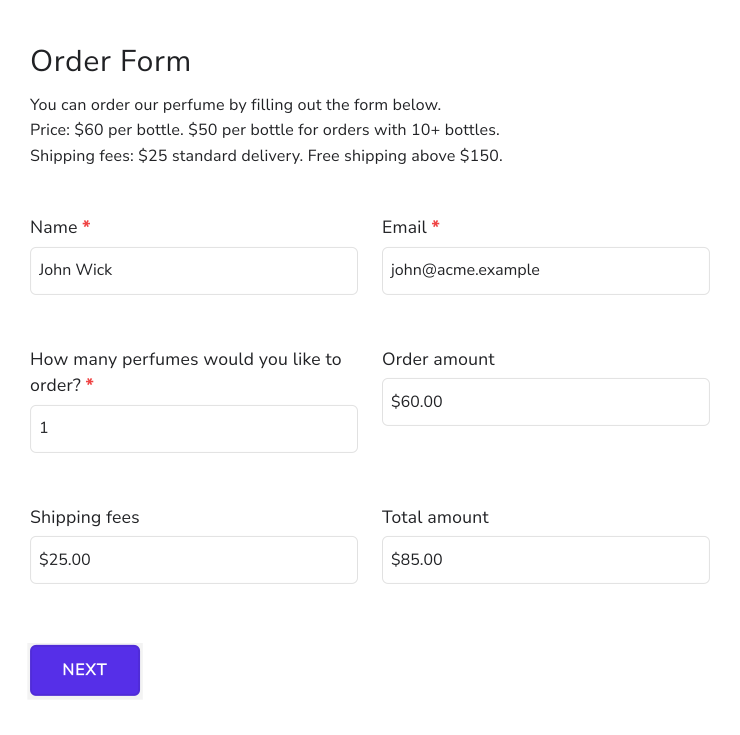
Order form
You can test this order form using the link below. https://bit.ly/formfacade
Summary
If you need a total or any other computed value in your form, Google Forms does not support dynamic calculations. With Formfacade, you write a formula in the Calculate option of a field and the value is computed and displayed in real-time to the user filling the form. Create your form and complete the steps above. If you have any questions, write to support.
Last updated: