How can I transfer ownership of the form?
This is a common question from people who build a form for a client. The client should own it in the end, so they can see the responses and change the form without asking you every time. Google Forms lets you add them as a collaborator, but a form customized under your account stays linked to you, so they still depend on you. To fix this, your client installs Formfacade and shares their embed code and you use that code on the webpage.
You can transfer ownership of the form [to your clients] by following the instructions below.
- Add your client as a collaborator in the Google Form.
- Ask them to install Formfacade & share the embed code with you.
- Use their embed code to include the form in the webpage.
Add your client as a collaborator in the Google Form
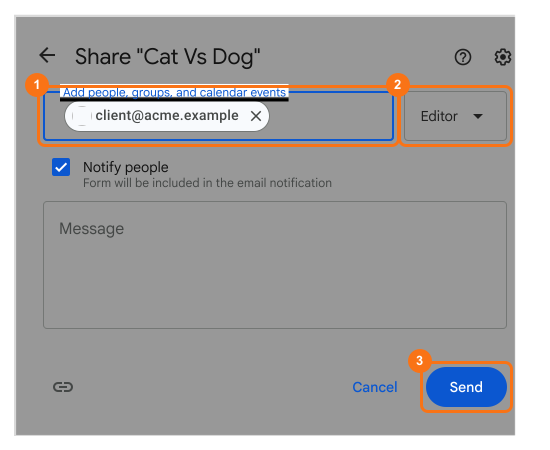
In the top right, click on the person icon "Share"

"Share" popup will be displayed. Enter your client's email, select "Editor" and click on "Send" button.
Ask client to install Formfacade & share embed code
Once you have added your client as a collaborator, they will be able to view the responses in the Google Form or the spreadsheet linked with that Google Form. However, they will not be able to use Formfacade's RESPONSES tab to view and organize the responses.
You should ask them to install Formfacade and share their embed code with you so that you can use it to embed the form in the webpage. Once this is done, they will be able to use Formfacade's RESPONSES tab and customize the form as well. Here's the instructions for your client.
Open the Google Form & click on "Formfacade - Embed Google Forms™" listed in the Add-on menu. If it is not listed, read How to Install Formfacade?
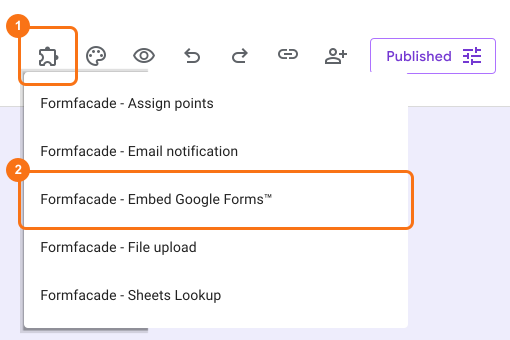
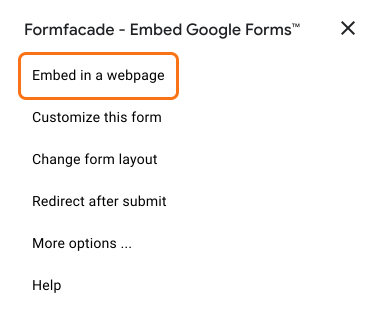
Once it is installed, open the Formfacade popup menu and click on "Embed in a webpage"
Select the relevant embed option based on their CMS and click on "Next" button.
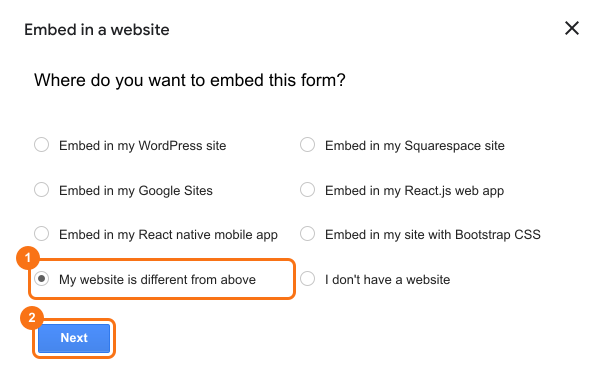
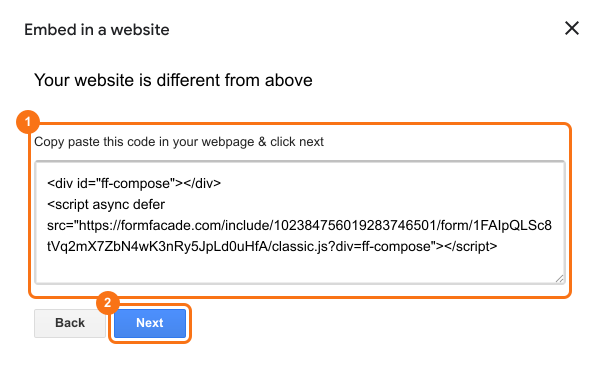
Copy the embed code and share it with you.
Use their embed code to add the form in the webpage
Paste their embed code in the webpage where you want the form. By using their embed code, you will be linking the form with their id. Your clients can now customize the form and manage form responses in Formfacade.
Summary
If you build a form for your client, adding them as a collaborator does not move the customized form to them. With Formfacade, your client installs the add-on and shares their embed code and you use that code so that they can customize the form and manage the responses. If you have any questions, write to support.
Last updated: