How to set up multiple payment methods for your business
"I am trying to get Apple Pay to be available as a payment method"- Google Sites Community
This is a common question from small businesses who take payments on their Google Sites or their own website. For example, if your customers pay on their phones, typing a card number, CVV and address is where they give up. They would rather tap the wallet they already use. A Google Form takes no payment at all and a link to one payment page gives them just one way to pay. With Neartail, you can support multiple payment methods in your order form. Your customers can pay by card with Stripe, tap a wallet like Apple Pay or PayPal or pay you by cash or bank transfer. Even better, you pay no commission to Neartail, only the payment company's fee on cards.
Let's start. Create your order form and follow the steps below.
How to add multiple payment methods?
- On the page that opens, click "Enter your form name". Type your form's name, click Generate and wait about a minute.
- Check the outline it suggests and click Proceed.
- Once you create the form, you will land on the form's "Edit" tab. If it asks "Do you want to preview this form?", click No.

- Your form comes with products, an Order Amount question that adds up by itself and an Order Quantity question. Click on each product and check its name and price, because a generated product can have no name and a price of 0.
- Click on the ⚙️ icon in the last After page row above the Submit button
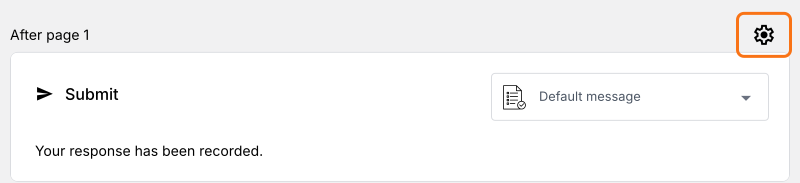
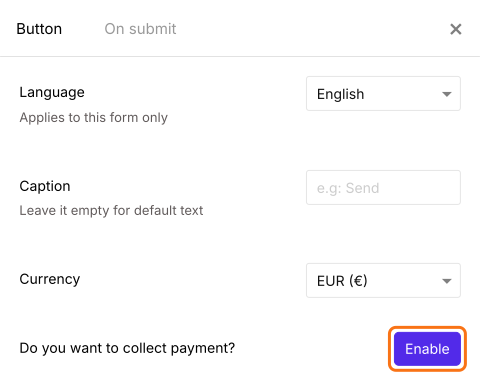
- Button settings screen will be displayed. The payment methods depend on the Currency here: Venmo, Cash App and Zelle are there with USD and UPI payments with INR. If you need another one, change it first and click on Save, because a method you turned on stays on after the change. Saving reloads the editor, so click on the ⚙️ icon again
- Click on the Enable button next to Do you want to collect payment
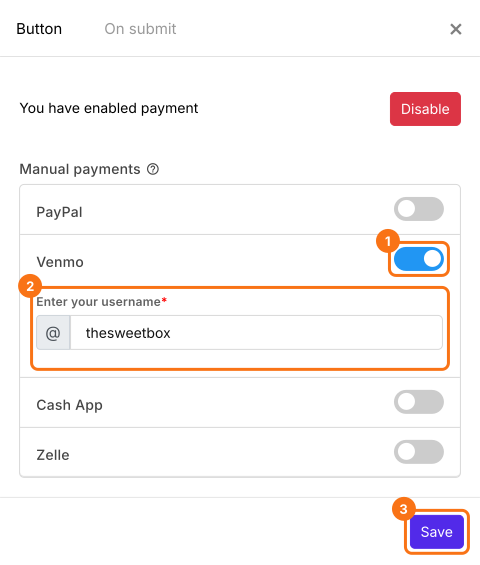
- Payments settings screen will be displayed. To take a wallet payment manually, click on the toggle button next to Venmo or Cash App under Manual payments and enter your username or Cashtag. If your currency is INR, you will find UPI payments here and it asks for your UPI/VPA id and your name
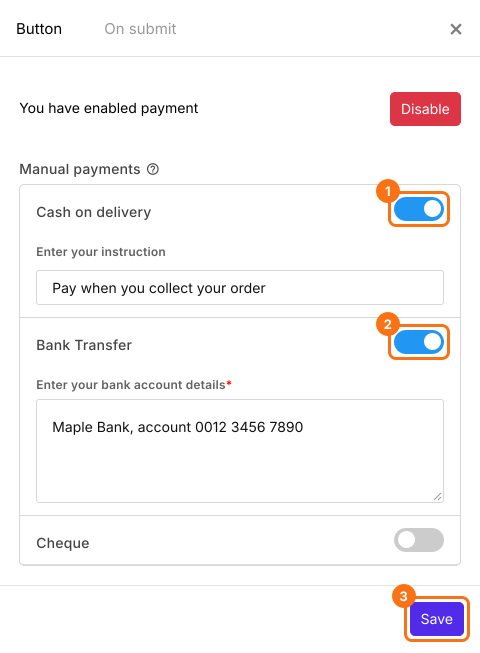
- To take cash or a bank transfer, click on the toggle button next to Cash on delivery or Bank Transfer, enter your instructions and click on Save
- To enable card payments, click on Configure next to Credit or Debit Cards to connect Stripe, as in How to accept online payments directly through your order form? Then click on the toggle button next to it and click on Save
If your form has a Delivery Fee, Tax or Discount, click on Add price field and add a Net Amount too. It shows in the Get net amount from list by itself and your customers pay it. Without it, they pay only the Order Amount.
How to let users pay with their phone wallet?
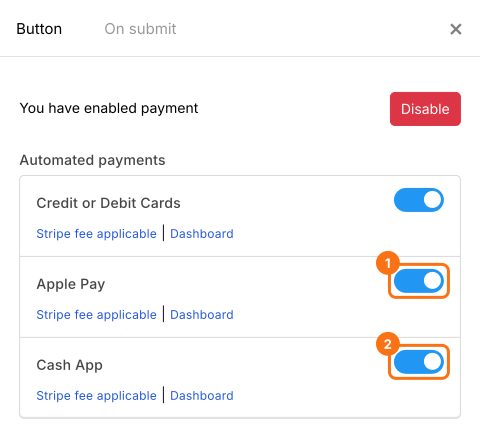
- Apple Pay works through Stripe, so connect Stripe first as above. In the Payments settings screen, click on the toggle button next to Apple Pay. If your currency is USD, you will find Cash App and Venmo here
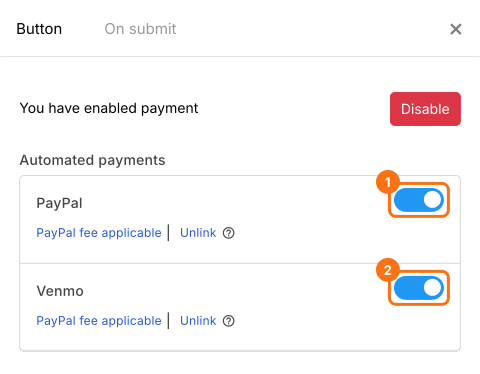
- Click on Configure next to PayPal to link your account and click on the toggle button. You can enable Venmo here if you have a PayPal business account
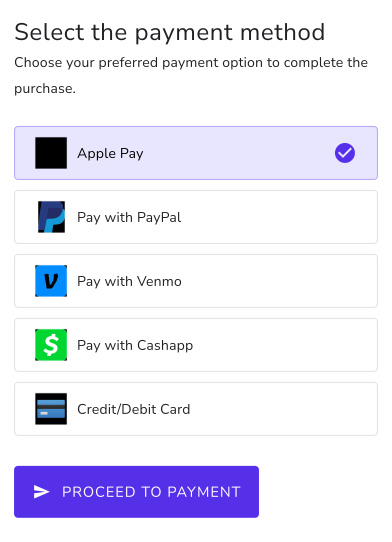
When users submit the form, they can select their payment method and click on Proceed to payment. If you have only one method on, they go straight to its payment page. With only Cash on delivery on, they click on Place order.
Summary
If your customers pay on their phones, typing a card number, CVV and address is where they give up and a single payment link gives them one way to pay. With Neartail, you enable cards, Apple Pay, PayPal, Venmo, Cash App or UPI on one form and each person pays with the wallet already on their phone. Create your order form and complete the steps above. If you have any questions, write to support.
Last updated: