How to Create a Google Order Form
"I need to create an order that allows respondants to select the item"- Google Docs Editors Community
This is a common question from people who sell from home and small shops. For example, if you take orders by phone and chat, every message interrupts your work and details such as the address are often missing. You can list your products on a Google Form, but it can't add up what each customer owes, so you still check every order by hand. With Neartail, you can create an order form with your products and prices. Your customers choose their products, see the total and enter their address on one page and they get an order confirmation. Even better, the form will have your own branding instead of Google's and your orders sync to Google Sheets, so you can share them with your team.
Let's start. Create your order form and follow the steps below.
Step 1: Create an online order form
- On the page that opens, click "Enter your form name". Type your form's name, click Generate and wait about a minute.
- Check the outline it suggests and click Proceed.
- Once you create the form, you will land on the form's "Edit" tab. If it asks "Do you want to preview this form?", click No.

- ADD PRODUCTS AND PRICES: Your form comes with products and prices. Click on each product and check its name and price, because a generated product can have no name and a price of 0
- Your prices use the currency of your browser's location. To use another one, click on the ⚙️ icon in the last After page row above the Submit button, change Currency and click on Save
- To add another product, click on the product before it and click Add product in the toolbar on the right. For example, "White Mushrooms 250g pack"
- (Optional) Add images of your products with Upload image on the product
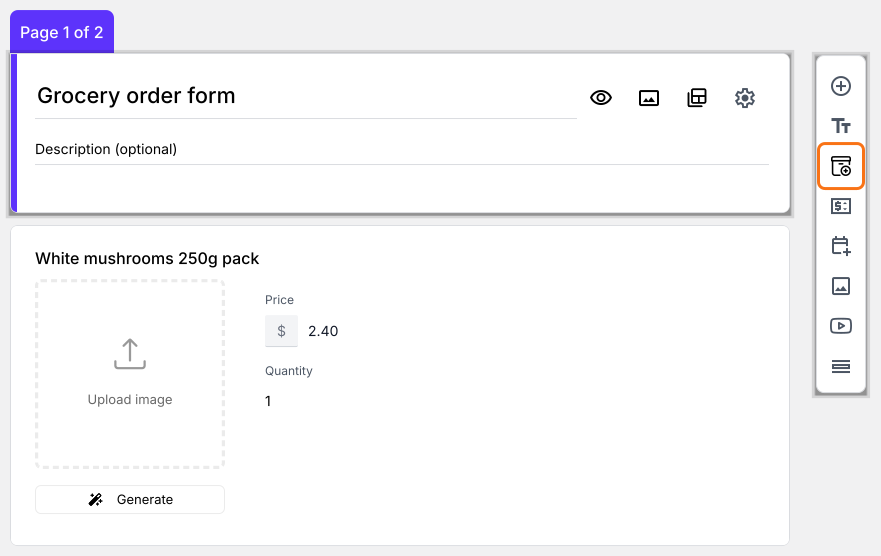
- Delivery details: Your form already asks the customers delivery details, like their name, phone number and address, under Contact Details
- Order Summary: Your form already has an Order Amount question that adds up by itself and a Review and place order section that shows the bill
Step 2: Preview & test the form and its calculations
- Click on "Share" tab, click Link and click Open to open up the link of this customized form
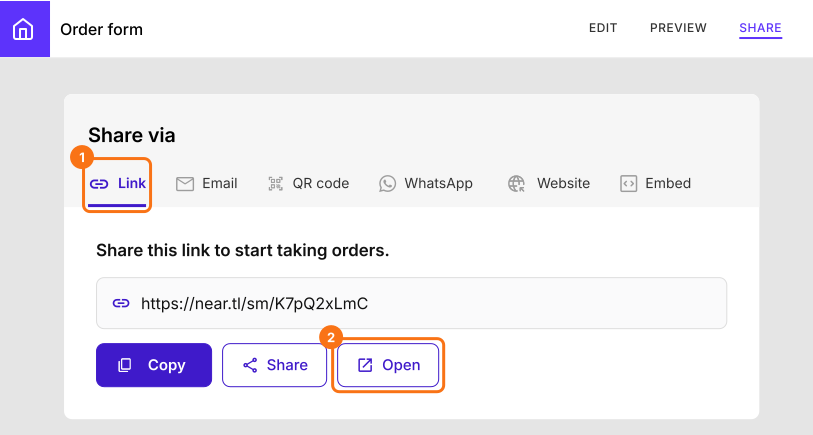
- You can now select the products and change the quantity to see how the calculation of the bill and Order Amount field works
- You can see that these two are dynamically changing as you change the order quantity. Works like a charm. Isn't it?
- Fill in the details and click Submit. You will see "Your response has been recorded" and the order will be in the "Orders" tab
Share your Google Order Form with your customers
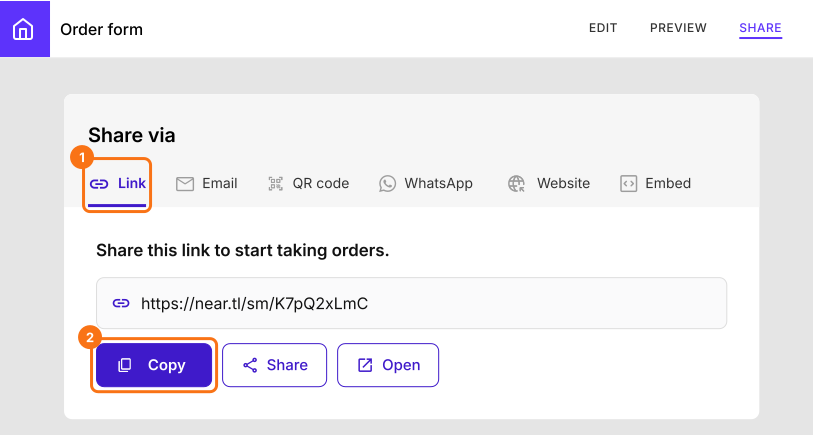
Summary
Last updated: