How to send a personalized email with generated pdf?

This is a common need for Google Forms users whose respondents want a copy of what they filled, while your team wants to know about each submission. Google Forms can send them a copy of the answers, but not a PDF made from your form. With Formesign, you can share the autogenerated PDF documents via email. Even better, you can set up confirmation emails to be sent to the form respondents and notification emails to be sent to your team for new form submissions.
Let's start. Upload your form as a PDF and follow the steps below.
Send confirmation emails
- Upload your PDF and click Proceed. On "Do you need the signed document to match your original PDF?", select Yes, keep my PDF exactly as it is and click Continue.
- About a minute later, check the fields and click Proceed. On "How do you want the signature?", select Create a reusable link for recurring forms and click Continue. Your form opens in a new tab so that you can try it. Back on this tab, click View signed documents.
- Each signer starts on Google Sign-in. If your users have no Google account, click Form, click the signature field and click Not required beside Verify identity.
- Click on "Responses" tab

- Click Kanban board
- Click on the three dots icon for the column your responses land in, such as Submitted
- Click Notify respondent
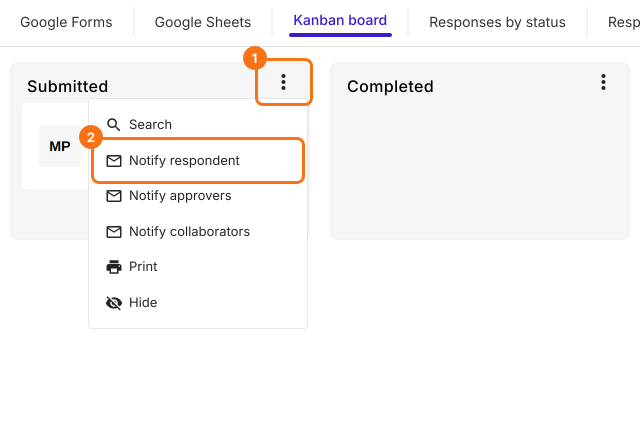
- Setup wizard will be displayed. Select the email field from the list and click Next
- Update the subject and click Next
- Update the message as required, enable Include form response as attachment and click Next
- When Test email notification is displayed, submit a test response with your own email address in the form and click YES to complete the setup.
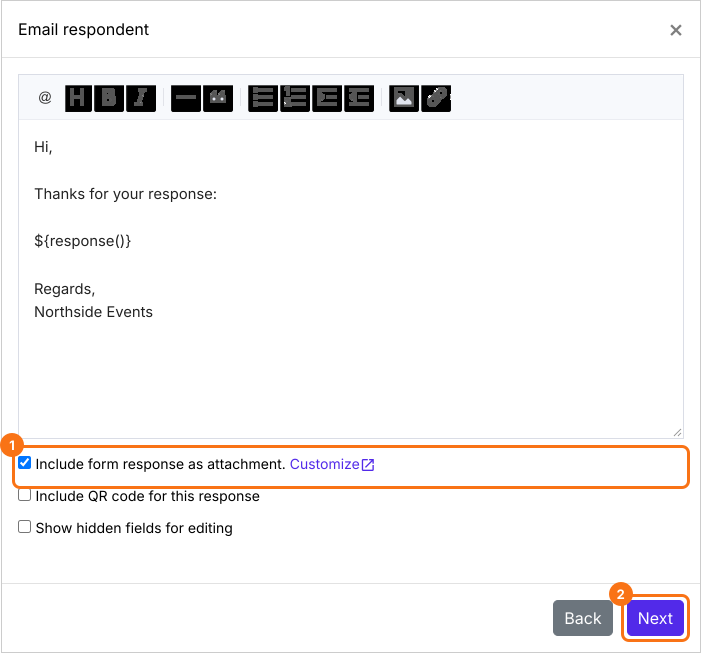
Each respondent gets the email with their answers and the PDF attached.
Receive notification emails
- In the Kanban board, click on the three dots icon again and click Notify collaborators
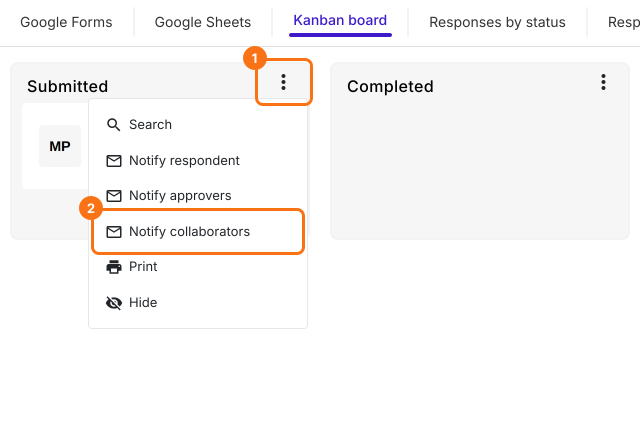
- Setup wizard will be displayed. Enter your email address and click Next
- Update the subject and click Next
- Update the message as required, enable the attachment and click Next. If Test email notification is displayed, submit a test response and click YES.
To collect responses, click on "Share" tab, copy the link and share it with your users.
Summary
If respondents want a copy of what they filled and your team wants to know about each submission, Formesign can email both. With Formesign, you set up a confirmation email with the PDF attached and a notification email for your team. Upload your form as a PDF and complete the steps above. If you have any questions, write to support.
Last updated: