How to send one signing link to everyone?
"instead of having to send them manually, one by one"- Google Docs Editors Community
This is a common wish from Google Workspace users who send the same contract to every client. For example, you're a life coach and each new client has to sign a contract before their first session and your booking system already sends a confirmation email on its own. But a Google eSignature request goes to the people you name, so you send each contract by hand. With Formesign, you can put one link in your booking email and each client signs their own copy of your contract. Even better, every signed contract is in one place.
Let's start. Create your form and follow the steps below.
1. Turn your contract into a signing form
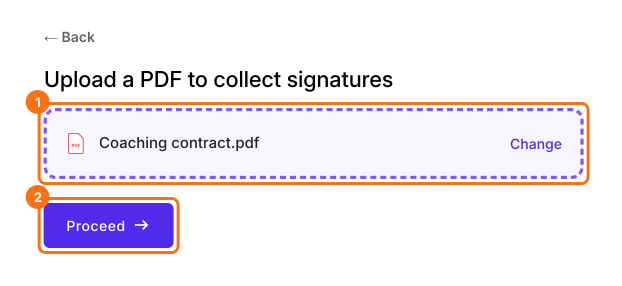
Click Upload a PDF, add your coaching contract and click Proceed. Choose Yes, keep my PDF exactly as it is, click Continue, check the boxes Formesign places and click Proceed. Under How do you want the signature?, select Create a reusable link for recurring forms and click Continue. Your form opens in a new tab so that you can try it. Back on this tab, click View signed documents.
2. Copy your signing link
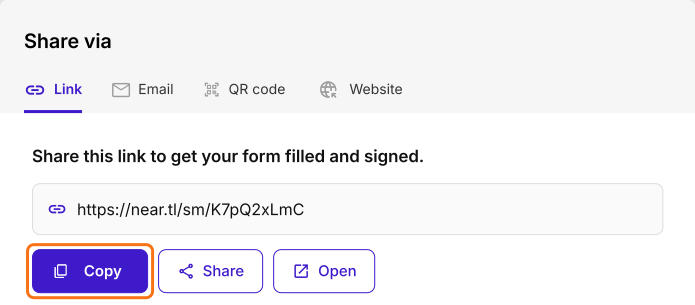
Signers start on Google Sign-in. If your clients may not have a Google account, open FORM, click the signature field and set Verify identity to Not required. Then open SHARE and click Copy on the Link tab.
3. Put it in your booking confirmation email
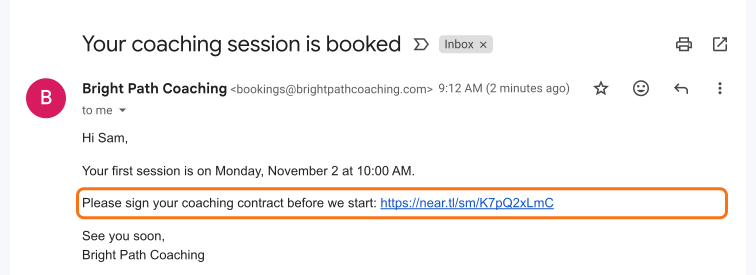
Paste the link in the confirmation email your booking system sends. You only do this once and every new booking carries it.
4. Each client signs their own copy
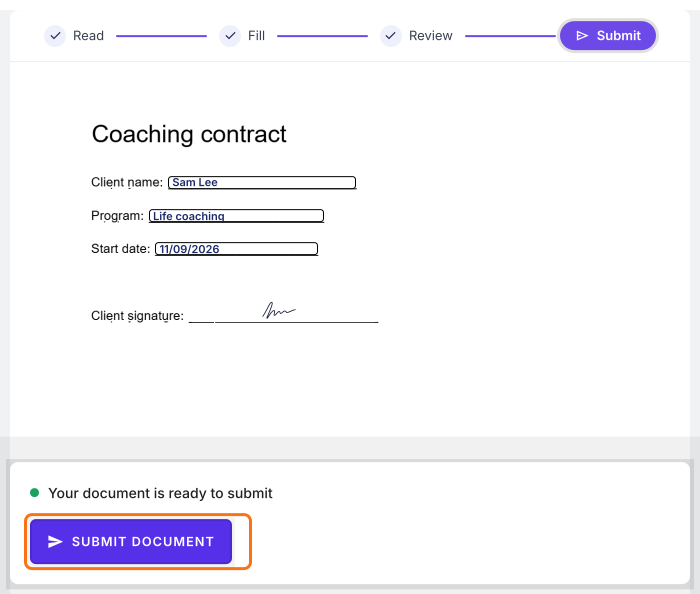
Each client who opens the link starts a new response. They fill it in, give their email, sign and click SUBMIT DOCUMENT.
5. Find every signed contract
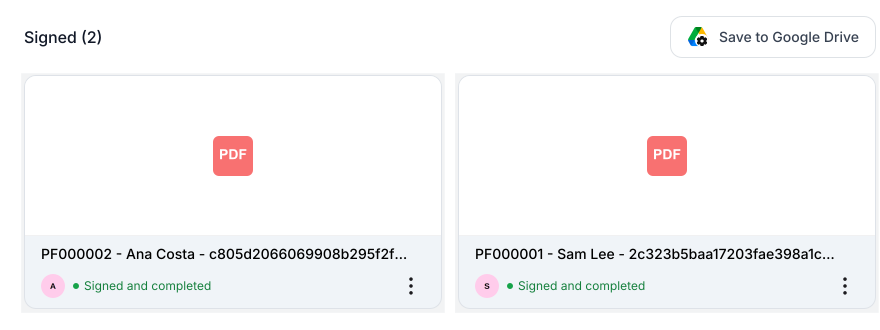
Each signed contract gets its own card in the SIGNED PDF tab, with the client's name.
Summary
If every new client has to sign your contract, sending each one by hand doesn't fit a booking system that already emails them. With Formesign, you put one link in your booking email, each client signs their own copy and every signed contract is in one place. Create your form and complete the steps above.
Last updated: