How to add sections in Google Forms?
This is a common question from Google Forms users with a long form. For example, people see one endless page of questions and many of them give up before the end. You want to break it into steps or at least put a heading over each group of questions. Google Forms lets you add sections for this, but each section still looks like the rest of a Google form. With Formfacade, you can add pages to organize your form into multiple pages. Your users will see one page at a time, with Next and Back. Even better, the pages will have your own branding instead of Google's, but the responses will be collected on your Google Forms.
Let's start. Create your form and follow the steps below.
Create a multi-page form
- On the page that opens, name your form, click Embed form and click Proceed. It can take about a minute.
- You will land on the form's "Share" tab, on Embed. The top bar may say "Blank Formfacade form" until you reload the page.
- Click on "Edit" tab

- Click on the question after which the new page must begin
- Click on Add page icon in the toolbar on the right
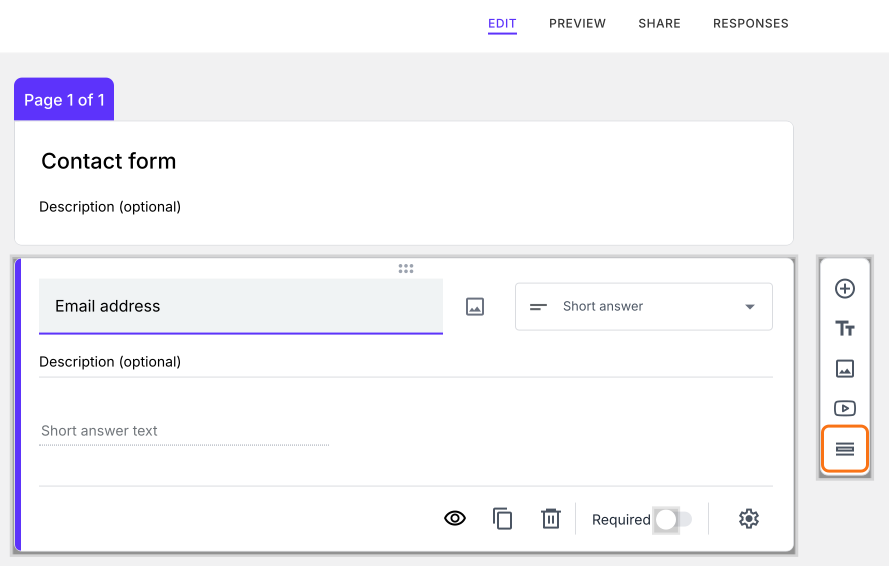
- The new page will be displayed, with the questions below the one you clicked already on it
- Replace "Untitled Section" with the page title
- Add questions or contents in that page
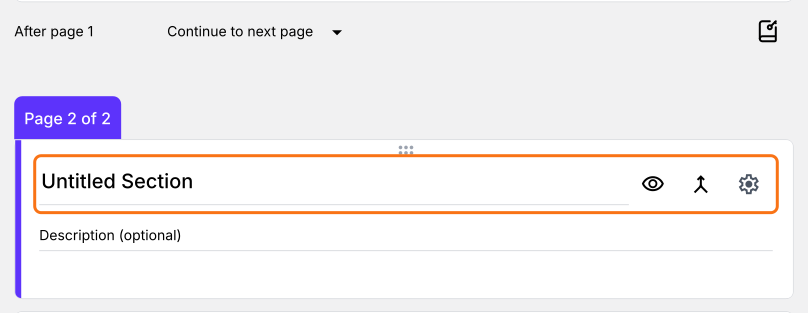
Users will see one page at a time, with Next and Back. If you have already changed the Submit button or its message, click on the ⚙️ icon on the last "After page" row. It asks "Button not configured!". Click Yes to reuse your settings on the new page.
Group questions within a page
- Click on the question after which the new title and description must be added
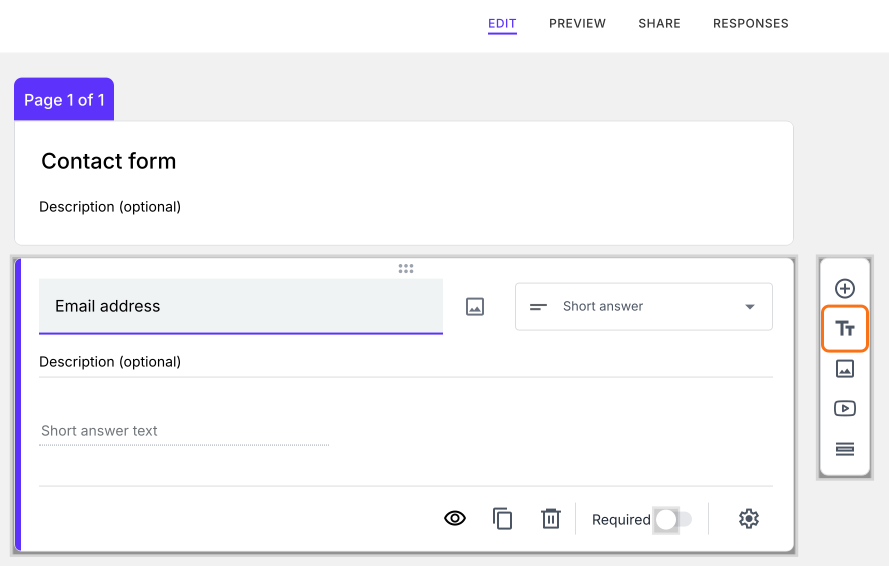
- Click on Add title & description icon in the toolbar on the right
- A card will be added right after the question. Add the title and description
Summary
If your form is long, one endless page of questions is hard to read. With Formfacade, you click on Add page icon to split it into multiple pages or Add title & description icon to group questions within a page. Create your form and complete the steps above. If you have any questions, write to support.
Last updated: