How to delete a response from google forms?
This is a common question from Google Forms users who count on their summary charts. For example, a person submits your form twice or a test answer gets in and that one response is counted in your charts and your totals. You want to remove it and keep all the others. Google Forms lets you delete one response from its Individual tab, but it shows the summary first, so you have to find that response before you can delete it. With Formfacade, you can open your responses in Google Forms from the Responses tab and delete that one response there. Even better, you can sync your responses to Google Sheets, so your team still has a copy after you delete it from the form.
Let's start. Create your form and follow the steps below.
How to get your responses into Google Forms?
- On the page that opens, name your form, click Embed form and click Proceed. It can take about a minute.
- You will land on the form's "Share" tab, on Embed. The top bar may say "Blank Formfacade form" until you reload the page.
- Click on "Responses" tab

- Click Submit to Google Forms
- "Submit responses to Google Forms?" popup will be displayed. Click Proceed

If the button already says View in Google Forms, your responses are already going to Google Forms. Only the responses submitted after you click Proceed will reach Google Forms.
- Click on "Share" tab

- Click Link, then click Open to open your form
- Fill the form and submit it, so that you have a response to see
How to delete a response?
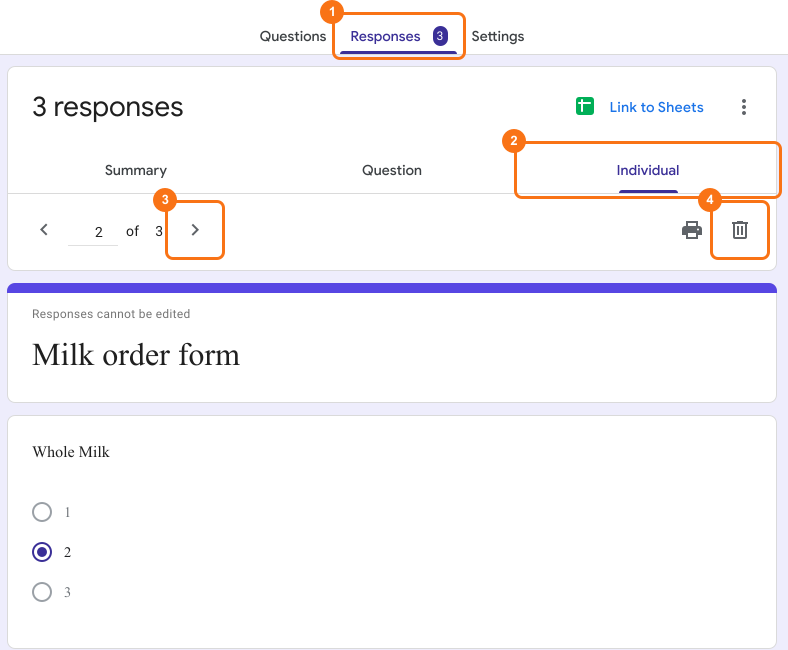
- Click on "Responses" tab
- Click View in Google Forms. Your form's responses will open in Google Forms

- Click Individual
- Click previous or next icon to view the response you want to delete
- Click delete icon
- Confirmation popup will be displayed. Click YES to delete the selected form response.
⚠️ Important
- Google Forms does not have version history like Google Docs or Sheets. When you delete responses in Google Forms, it will be deleted permanently. Deleted responses cannot be restored later.
- Deleting responses from Google Forms will not automatically delete the responses synced to Google Sheets. You can manually delete it in sheets or unlink the form & create a new sheet.
Summary
If one wrong or repeated response is counted with the others, your totals will not be correct. With Formfacade, you click Responses > View in Google Forms > Individual, go to that response with the previous or next icon and click the delete icon, but the deleted response cannot be restored later. Create your form and complete the steps above. If you have any questions, write to support.
Last updated: