How to take canteen orders at the counter?
"Every day, I need to fill in a form for my school cafeteria"- Google Docs Editors Community
This is a common question from people who run school canteens. For example, a form gets filled in for each student's lunch every day and at lunchtime the line builds while staff scroll through the whole menu. A Google Form is made to be filled in once, so after each order you start again from a blank form and the students behind wait. With Neartail, you can run your form as a point of sale at the counter. Staff search for the item, add it to the cart and go straight on to the next student. Even better, the cart shows the total and each order goes to your ORDERS tab, so nobody adds anything up afterwards.
Let's start. Create your canteen form and follow the steps below.
1. Create your canteen form
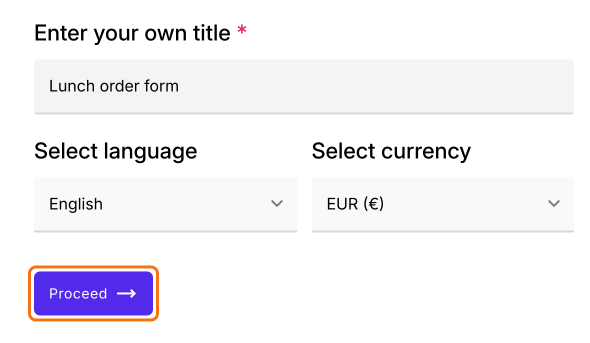
Click Create a canteen form and sign in. Check your form's title, language and currency and click Proceed. Once you create the form, you will land on the form's Edit tab. If it asks "Do you want to preview this form?", click No.
2. Open the POS form at the counter
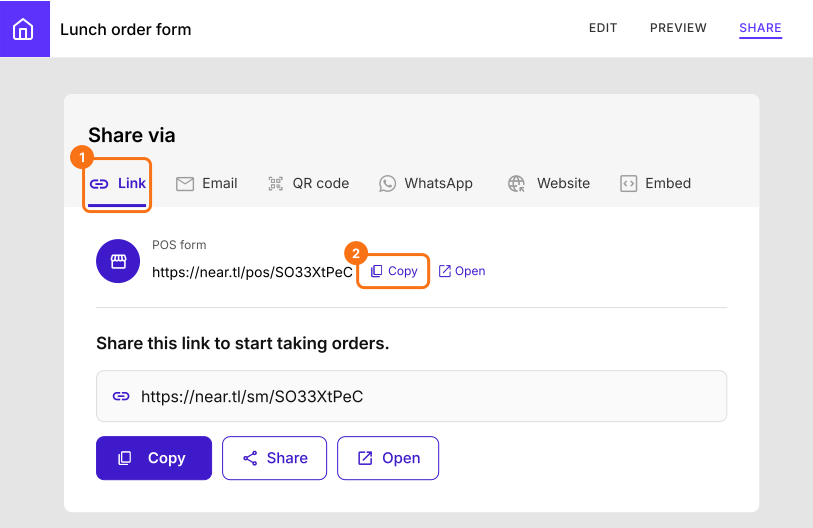
In your form, click SHARE, then click Link. Under POS form, click Copy and open the link on the counter's tablet. When it says "To proceed, you need to be logged in.", click Login.
3. Search for the item
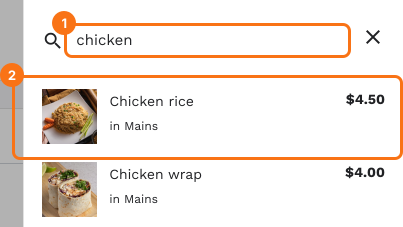
Click Search products and type a name in Search for products. Click the item to go straight to it.
4. Add it to the cart
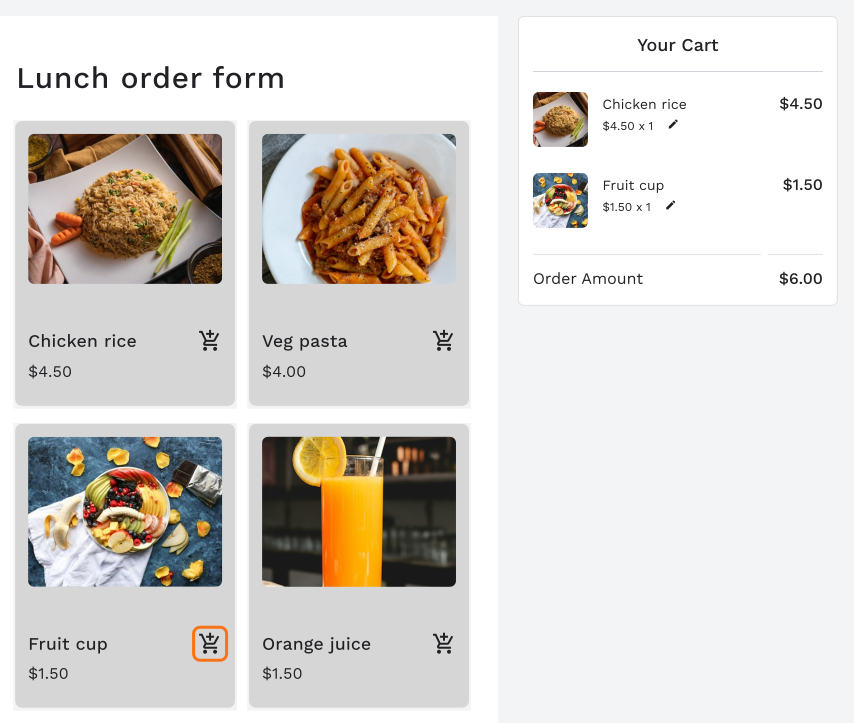
Click the cart icon on each item. Your Cart shows what the student ordered and the total.
5. Go on to the next student
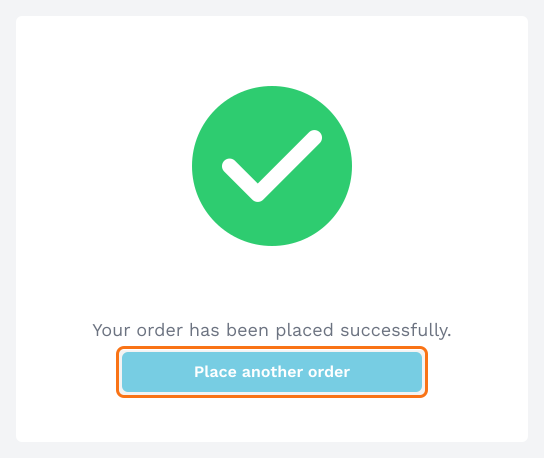
Fill in the student's details and submit the form. The order goes to your ORDERS tab. Click Place another order and the page is ready for the next student.
Summary
If a form gets filled in for each student's lunch every day, scrolling the menu and starting again from a blank form makes the line build up. With Neartail's POS form, staff search for the item, add it to the cart and go straight on to the next student. Create your canteen form and complete the steps above.
Last updated: