How to assign different points for specific statements in a grid question?

This is a common question from people whose questionnaires have statements that are scored in reverse. For example, in the Oxford Happiness Questionnaire, the same answer must earn high points on one statement and low points on another. Google Forms treats every row of a grid the same way and it cannot give points to the columns, so you have to work out these scores by hand in a sheet. With Formfacade, you can use the GRIDSCORE function to assign points for the answer choices in the multiple choice grid question and calculate the score. GRIDSCORE function should be used if one or more statements in the multiple choice grid question have different points. Each person will see their score on the form. Even better, you can sync the responses to Google Sheets with the score in its own column, so you can share the results with your team.

Let's start. Create your form and follow the steps below.

How to assign points using the GRIDSCORE function?

  • On the page that opens, name your form, click Create form and click Proceed.
  • You will land on the form's "Edit" tab. The "Assign points" dialog opens about 15 seconds later, so wait for it.

The tabs Edit, Preview, Share and Responses, with Edit marked
  • It asks "How do you want to set up scoring?". AI score setup is picked. Click Proceed.
  • "Describe how you want to score this form" is filled in. Click Send and click Next.
  • You're all set message will be displayed. Click the × to go back to the "Edit" tab.
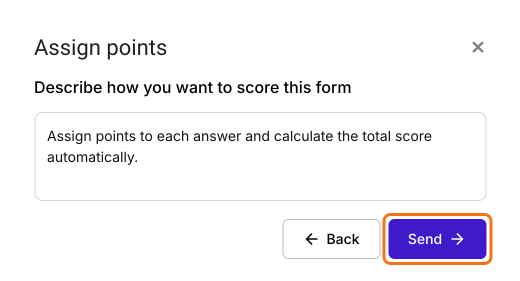
The Assign points dialog asking Describe how you want to score this form, with the box filled in and Send marked
Let's change this form into the Oxford Happiness Questionnaire to measure the current level of happiness. This happiness questionnaire consists of 29 statements. The items are a combination of positively and negatively phrased statements and pertain to different areas of well-being. This ensures that the respondent takes time to carefully read each item before answering. The survey asks you to evaluate each statement and rate it according to how much you disagree or agree with the statement. It uses a 6-point Likert scale with 6 being the highest as "strongly agree".
We will use a multiple choice grid question with 29 statements that pertain to different areas of well-being. The answer choices for this multiple choice grid question are as follows: strongly disagree, moderately disagree, slightly disagree, slightly agree, moderately agree, strongly agree. Please follow the instructions below to assign points and calculate the score.
  • Click on a question and change it to Multiple choice grid in the list of question types. Enter the statements under Rows and the answer choices under Columns. Delete the questions you do not need.
  • Your form already has a Score question, which may be named Total Score. Click on the score question, then click the ⚙️ icon.
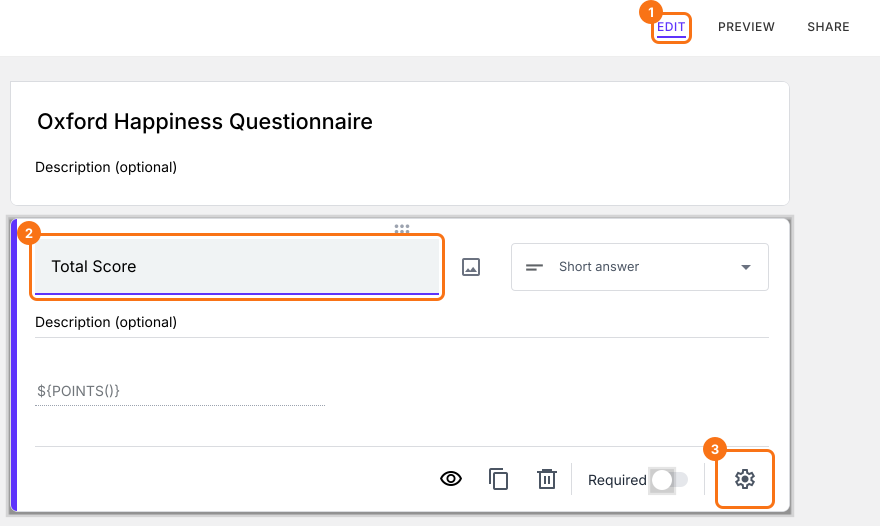
Oxford Happiness Questionnaire on the EDIT tab with the Total Score question selected and EDIT, the question and the gear at the bottom of its card marked
  • Field settings screen will be displayed. Select the "Answer" tab and write the formula to assign points and calculate the score.
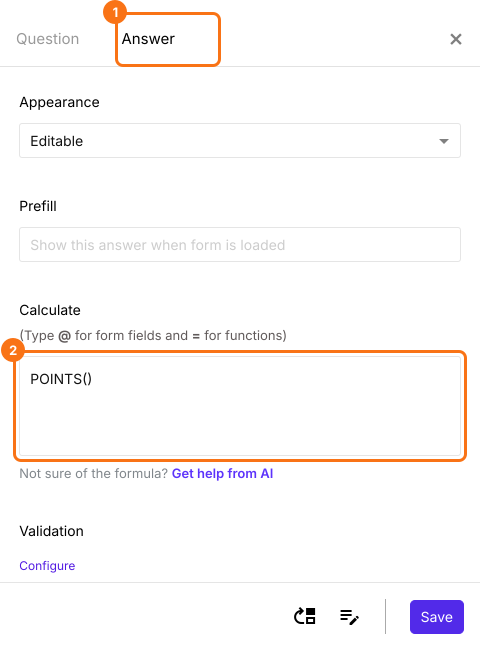
The Answer tab of the Score question with Answer and the Calculate box holding POINTS() marked

GRIDSCORE function

You can use the GRIDSCORE function to assign the points to the columns (answer choices) for specific rows (statements) in a grid question and calculate the score.
The happiness questionnaire has 29 statements in a multiple choice grid question with a 6-point likert scale. Twelve of the 29 items are scored reversely. The answer choices for statements 2, 3, 4, 7, 8, 9, 11, 12, 15, 16, 17, 18, 20, 21, 22, 25, 26 will be assigned the points as shown below.
  • strongly disagree = 1
  • moderately disagree = 2
  • slightly disagree = 3
  • slightly agree = 4
  • moderately agree = 5
  • strongly agree = 6
GRIDSCORE(entry#id, [2, 3, 4, 7, 8, 9, 11, 12, 15, 16, 17, 18, 20, 21, 22, 25, 26], 1, 2, 3, 4, 5, 6)
The answer choices for statements 1, 5, 6, 10, 13, 14, 19, 23, 24, 27, 28, 29 will be assigned the points as shown below.
  • strongly disagree = 6
  • moderately disagree = 5
  • slightly disagree = 4
  • slightly agree = 3
  • moderately agree = 2
  • strongly agree = 1
GRIDSCORE(entry#id, [1, 5, 6, 10, 13, 14, 19, 23, 24, 27, 28, 29], 6, 5, 4, 3, 2, 1)
Happiness score is the average of all the statements. The formula to calculate the happiness score is:
(GRIDSCORE(entry#id, [2, 3, 4, 7, 8, 9, 11, 12, 15, 16, 17, 18, 20, 21, 22, 25, 26], 1, 2, 3, 4, 5, 6) + GRIDSCORE(entry#id, [1, 5, 6, 10, 13, 14, 19, 23, 24, 27, 28, 29], 6, 5, 4, 3, 2, 1)) / 29
Note: Type @ and select the required multiple choice grid question from the list to add its entry #id in the above formula.
Save the grid question before you write this formula. Its entry #id changes after the first save.
  • The Calculate option already has POINTS(). Delete it and write the GRIDSCORE function in the Calculate option as shown below and click Save. The lowest happiness score is 1 and the happiest score is 6. The average score is slightly above 4.
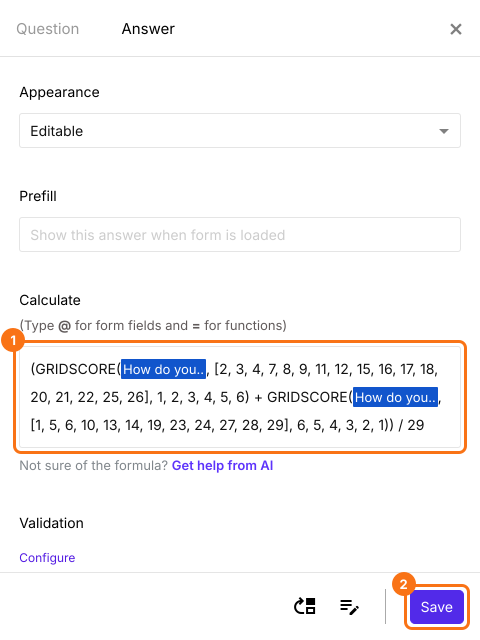
The Calculate box with the two GRIDSCORE functions added together and divided by 29 and the Save button marked
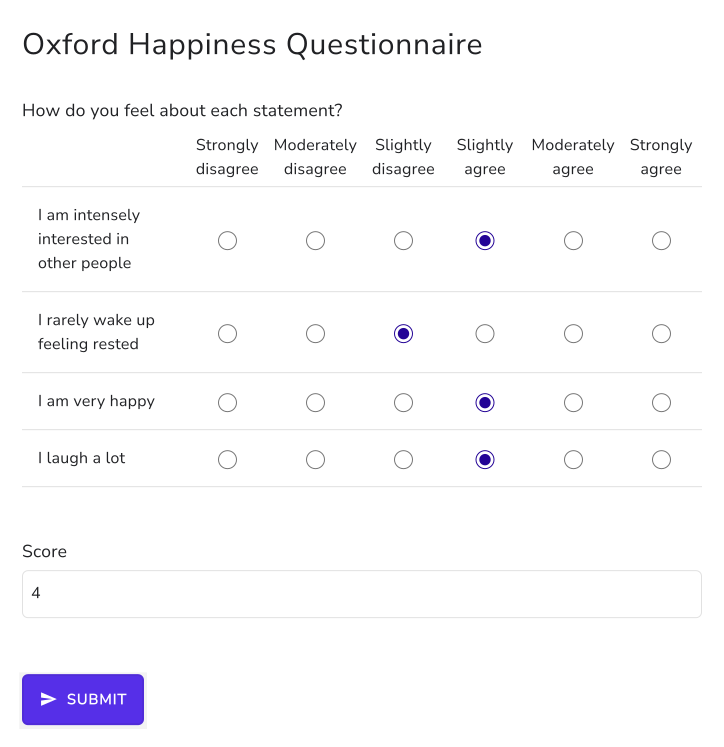
The score is calculated as users answer the question.
The Oxford Happiness Questionnaire as a multiple choice grid on a 6-point scale, answered, with a Score of 4

How to show this score after submit?

The message after submit has its own formula, so it will not follow the Score question. To show this score, add the Score question to the message.
  • Scroll down to the end of the form and click on the gear icon on the last "After page" row, above the Submit button. It says "After page 1" on a form with one page. The panel can take a few seconds to open, so click once.
  • Button settings page will be displayed. Click On submit. Select Show customized message for this button.
  • Delete the message that is there and type your own. Click on the @ option, select the Score question and click Save.
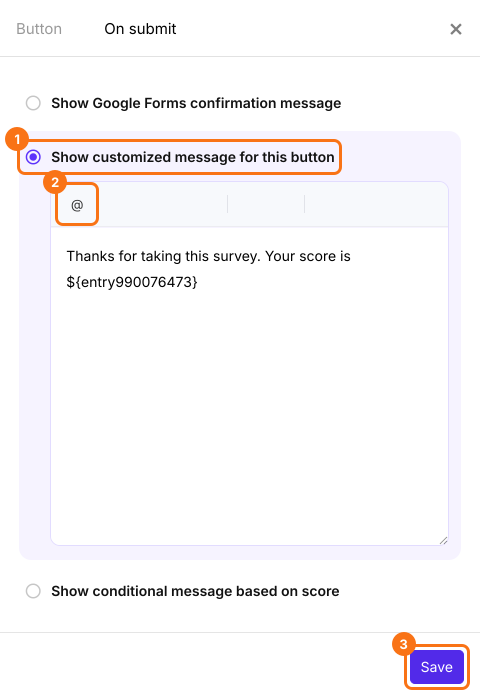
The On submit tab with Show customized message for this button selected and a message with the Score question in it and that option, the @ icon and Save marked
When a user submits the form, they will see this score in the message.

Summary

If some statements in your grid question have different points, a quiz in Google Forms cannot score them. With Formfacade, you write the GRIDSCORE function in Calculate with the rows and the points for each answer choice and the score is calculated in the form. Create your form and complete the steps above. If you have any questions, write to support.

Last updated: