How to email each person their quiz score?
"Can a user submitting a Forms quiz be shown a score based on a calculation?"- Google Docs Editors Community
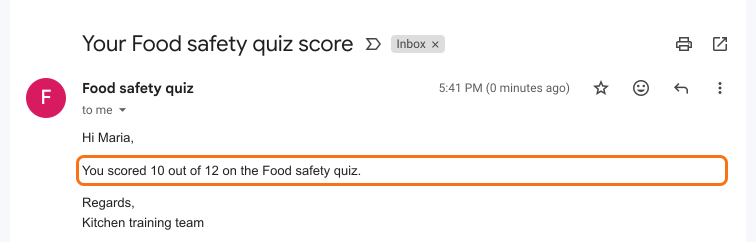
This is a common question from Google Workspace users building quizzes in Google Forms. If you run a quiz, each person should get a score worked out from their answers as soon as they submit. Google only totals its own answer key and you can't write the email it sends. A script is one more thing to build and look after. With Formfacade, you can email each person their own calculated score as soon as they submit your quiz. Each person will see their score in their inbox, so it isn't gone when they close the form. Even better, you write that email yourself, so you can tell them what to do next.
Let's start. Create your form and follow the steps below.
1. Say how to work out the score
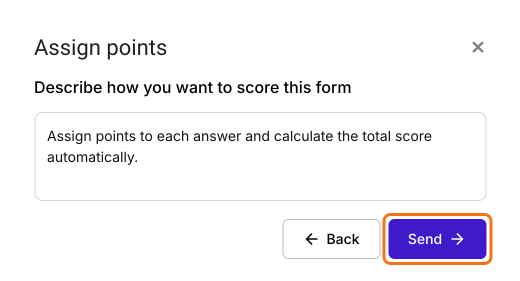
On the page that opens, name your form, click Create form and click Proceed. You will land on the form's Edit tab. The Assign points dialog opens about 15 seconds later, so wait for it. AI score setup is picked, so click Proceed. The box is already filled in, so change it only if you want to say how the score works. Click Send and click Next. When it says "You're all set!", click the × to go back to the Edit tab.
2. Check the Score field
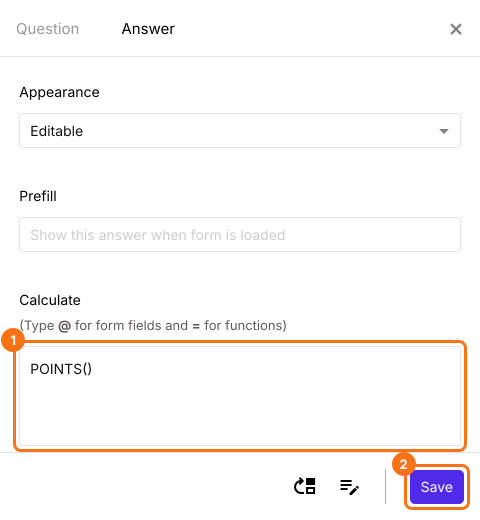
Your form has a Score field that holds each person's total. Click it, click the gear, open Answer, check that Calculate says POINTS() and click Save.
3. Turn on the email
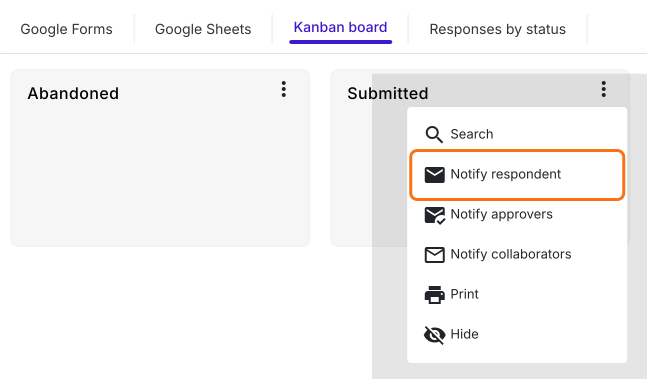
Click on Responses tab, then Kanban board. Click the three dots on Submitted, then Notify respondent. Check that it has picked the question that holds each person's email and click Next. Click Next again to keep the subject.
4. Add the score to your email
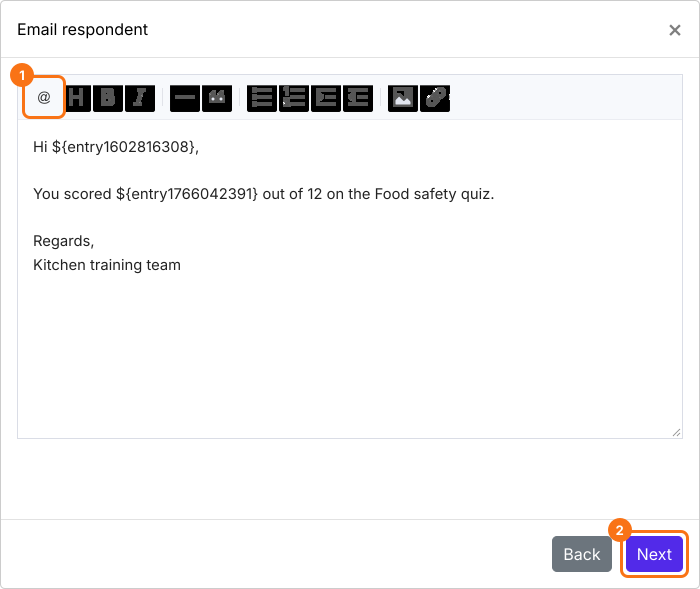
In the message, click @ in the toolbar, pick Score and click Next. The code you see here becomes each person's own number.
5. Each person gets their score
Click Click here to open your form in a new tab, fill it and submit it with your own email. Click YES when the email arrives. From now on, each person gets their own score as soon as they submit.
Summary
If each person should get a score worked out from their answers, Google's quiz settings fall short and a script is one more thing to look after. With Formfacade, you say how to work out the score, add it to your email and each person gets their own score as soon as they submit. Create your form and complete the steps above. If you have any questions, write to support.
Last updated: