How to add a verbal assessment based on the calculated score?
"I'm wanting to build a personality type quiz (relating to stress) in Google Forms"- Google Docs Editors Community
This is a common question from Google Workspace users building assessments in Google Forms. For example, you might run a happiness questionnaire and a number alone tells people very little, so each person needs a few words on what their score means and what to do next. Google Forms lets you write one confirmation message, so everyone sees the same words after they submit. You can work out the result in a Google Sheet or with a script, but people never see it on the form and someone has to keep that script working. With Formfacade, the default confirmation message is "Your total score is [score]" and you can customize this message or show conditional message based on score. Each person will read the message for their own score as soon as they submit. Even better, the form will have your own branding instead of Google's, so the result feels like it came from you.
Let's start. Create your form and follow the steps below.
Oxford Happiness Questionnaire
Interpreting the score, by Stephen Wright
How to assign points?
- After you click "Create your form", name your form, click Create form and click Proceed on the page that opens.
- You will land on the form's "Edit" tab. The "Assign points" dialog opens about 15 seconds later, so wait for it.

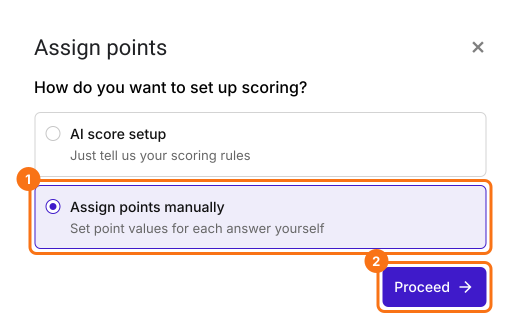
- It asks "How do you want to set up scoring?". Select "Assign points manually" and click Proceed.
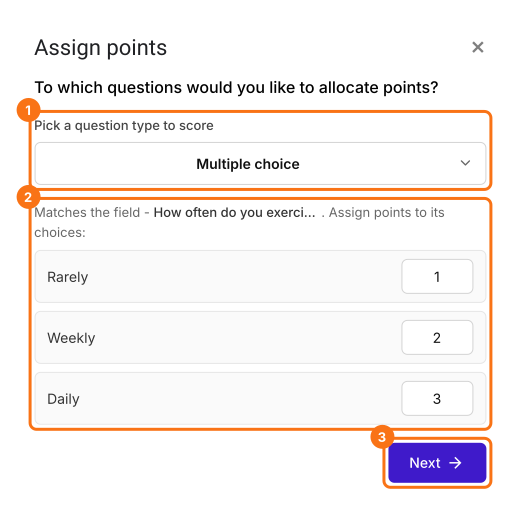
- Pick Multiple choice as the question type to score, assign points to its choices and click Next. The same points go to every multiple choice question in your form.
- It asks "How do you want to show the score?", with both options ticked. Click Next.
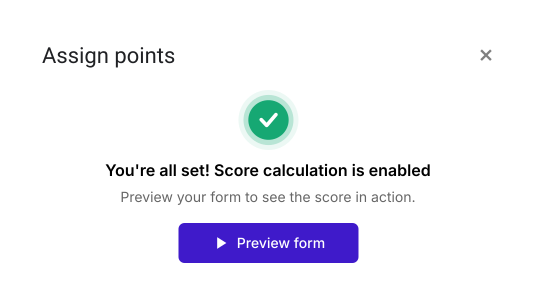
- You're all set message will be displayed. Click the × to go back to the "Edit" tab.
- Click on the question, then click on the gear icon
- Question settings page will be displayed. Click Answer. Assign points for the different answer choices and click Save.
- Do this for all the questions in your form
How to show conditional message based on score?
- In the Edit page, scroll down to the end of the form and click on the gear icon on the last "After page" row, above the Submit button. It says "After page 1" on a form with one page. The panel can take a few seconds to open, so click once.
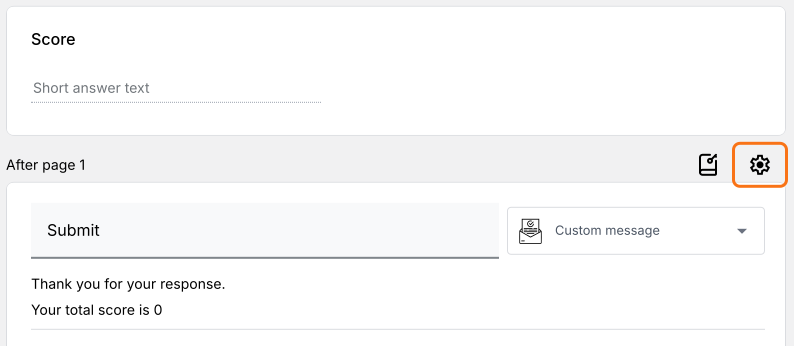
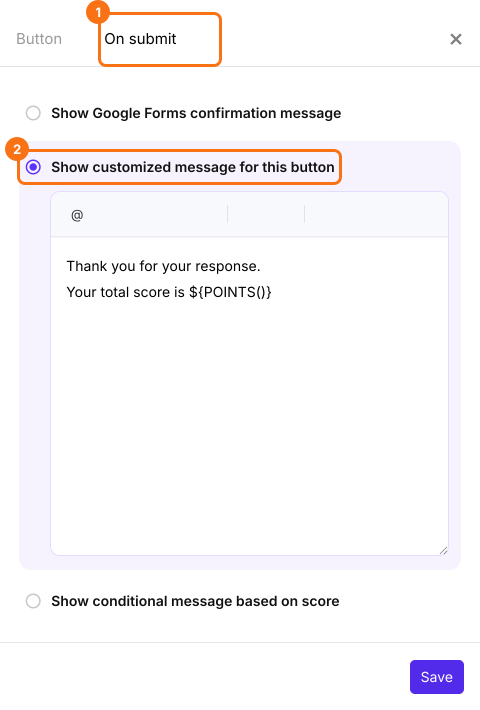
- Button settings page will be displayed. Click On submit. By default, Show customized message for this button option will be selected.
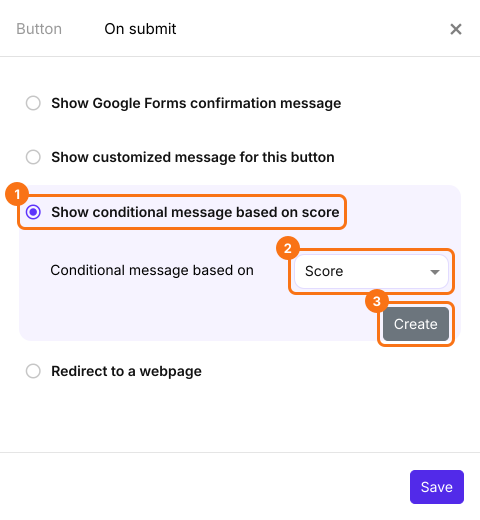
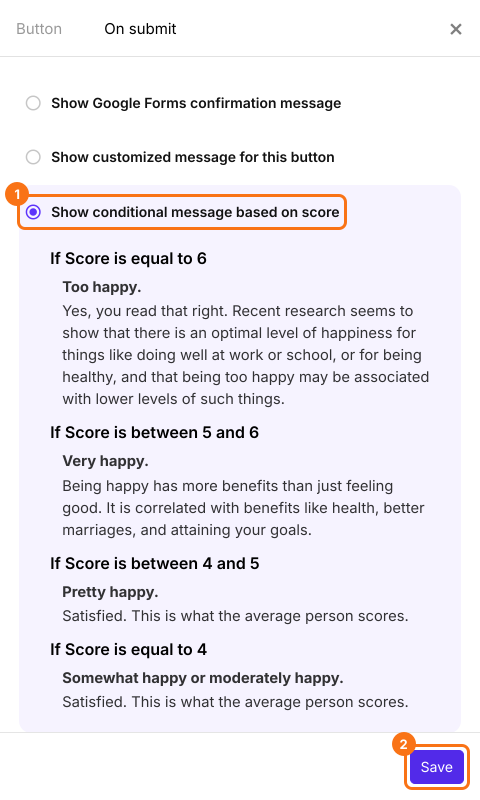
- Select Show conditional message based on score. Select the score field. Click Create.
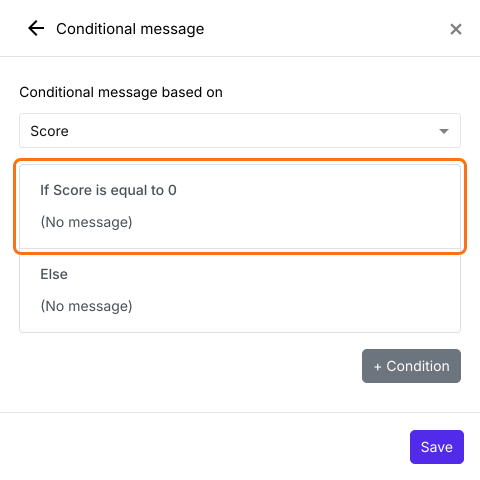
- Condition message settings page will be displayed. Click on the first condition to edit the condition and update the message.
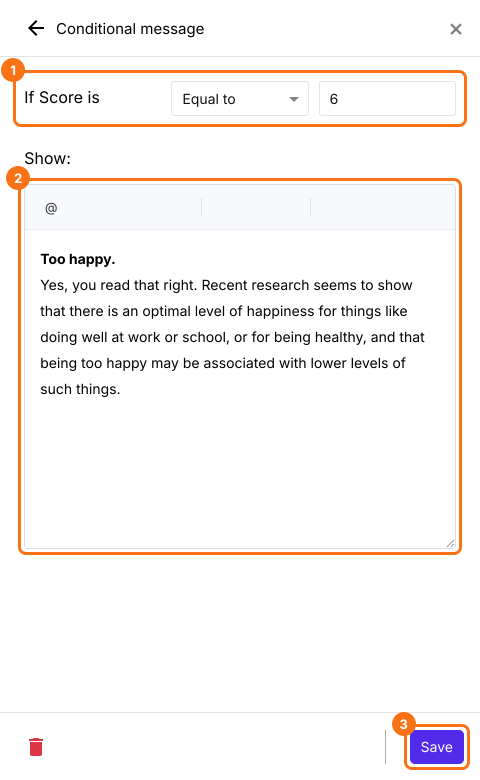
- Update the condition, enter a customized message and click Save.
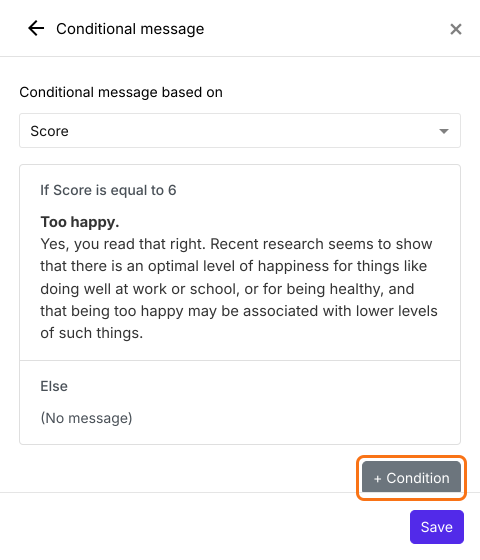
- Click on + condition button to add another conditional message.
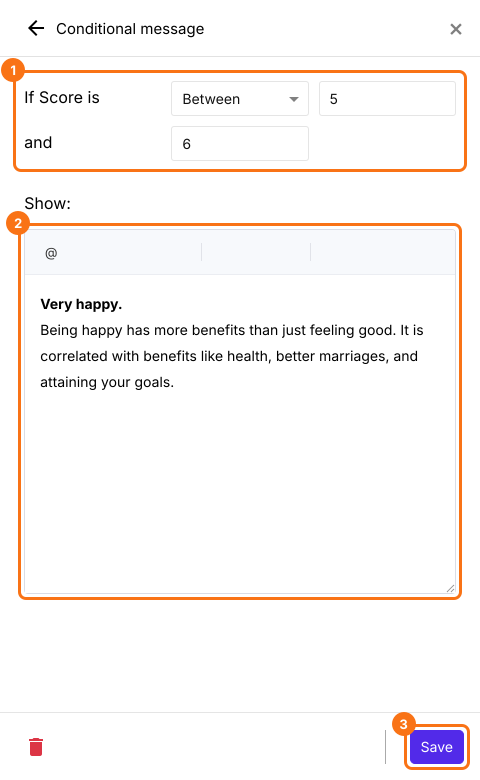
- Update the condition, enter a customized message and click Save.
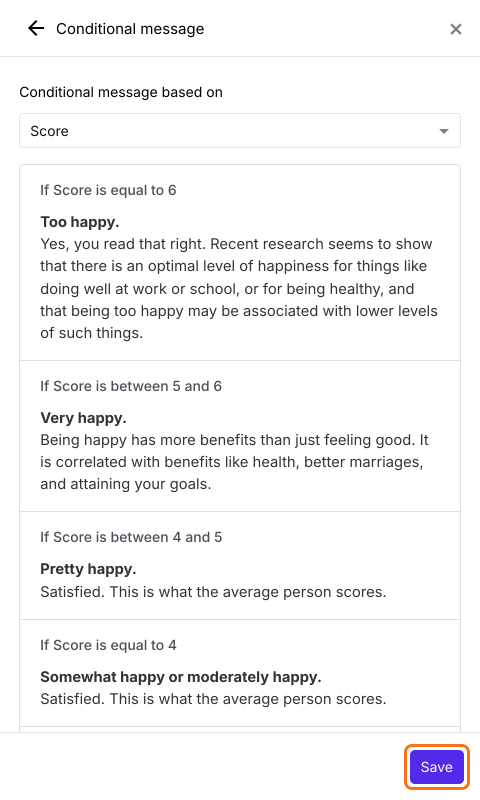
- Once you have added all the conditional messages, click Save.
- You will see the summary of the conditions with the customized messages. Click Save to complete setup.

How to send users to a different page based on score?
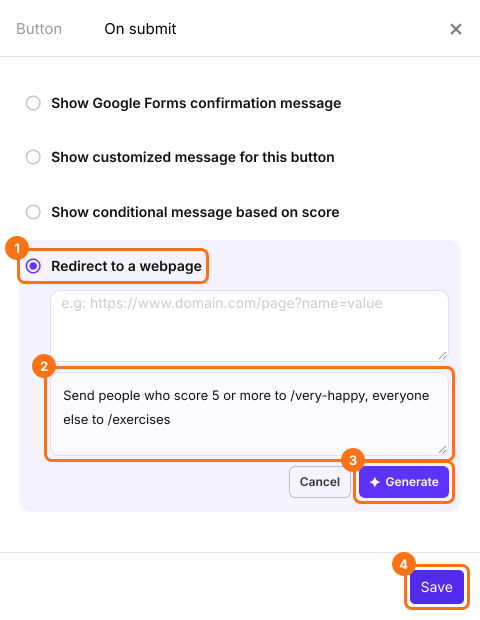
Summary
Last updated: