Is it possible to hide fields in Google Forms?
This is a common question from Google Forms users who send a survey with a pre-filled link. Your customers can see and change the details you filled in. They may edit their company name by mistake or wonder why you are asking for what you already know. Google Forms can pre-fill these answers, but it cannot make them read-only or hide them. With Formfacade's field settings option, you can change a question from editable to read-only or hidden and your customers will see only what they need to answer. Even better, you still have the hidden data in your responses.
Let's start. Create your form and follow the steps below.
Why do I need these options? How can I use them?
Let's say you want to send a customer satisfaction survey to your customers. You can use the pre-fill option to fill the name, company, email & other details that you already have and then send out the survey so that your customers don't have to waste their time filling in these details again. But, pre-filled fields can be edited, which is not always desirable. You can make these fields as read-only so that users can review them, but not make any updates. Or, hide these fields so that you have the data in the survey responses, but don't have to display this to your users unnecessarily!
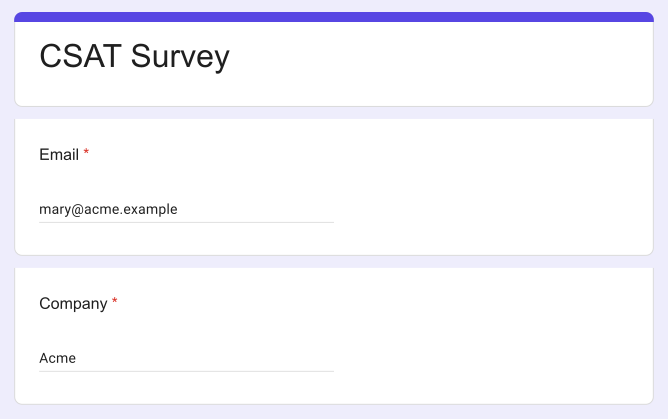
Here's a screenshot of a Google Form with pre-filled email & company fields to get feedback from customers.
How to hide a field?
- On the page that opens, name your form, click Build form and click Proceed. It can take about a minute.
- You will land on the form's "Preview" tab.
- Click on "Edit" tab

- Click on the field, then click on the ⚙️ icon to open field settings screen. If your form does not have the field, click on the + icon in the toolbar on the right to add it.
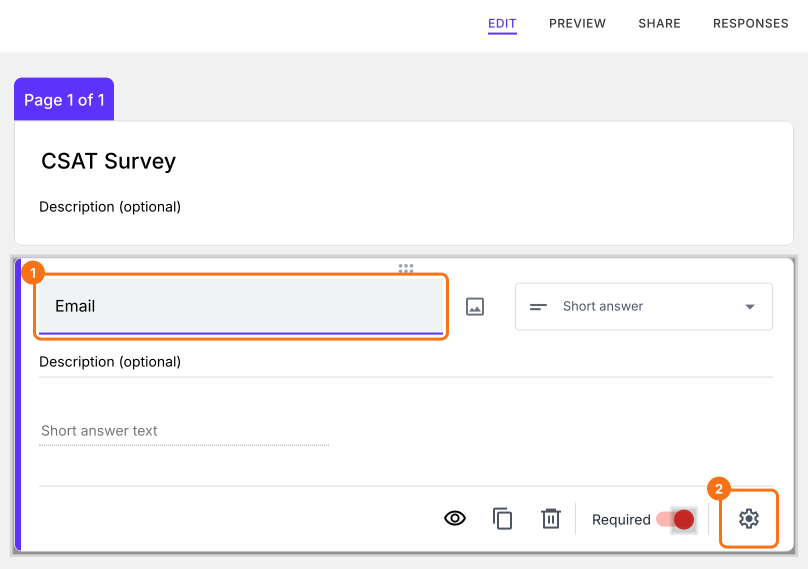
- Select the "Answer" tab
- Select "Hidden" for Appearance option. Select "Read only" if users should see the answer but not change it.
- To send an answer with the hidden field, enter it in Prefill
- Click on the "Save" button
- Similarly, you can hide the company [or any] field in the form
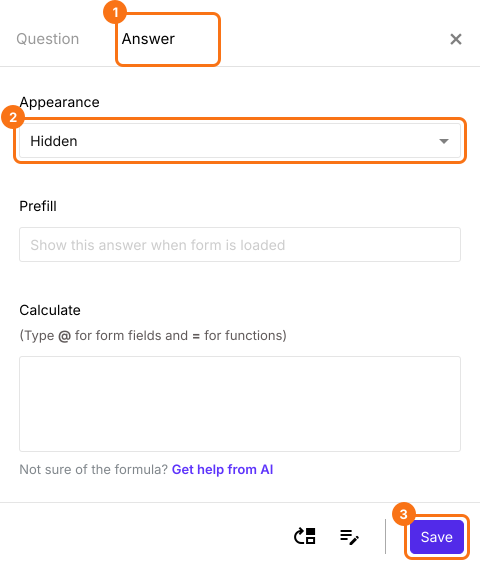
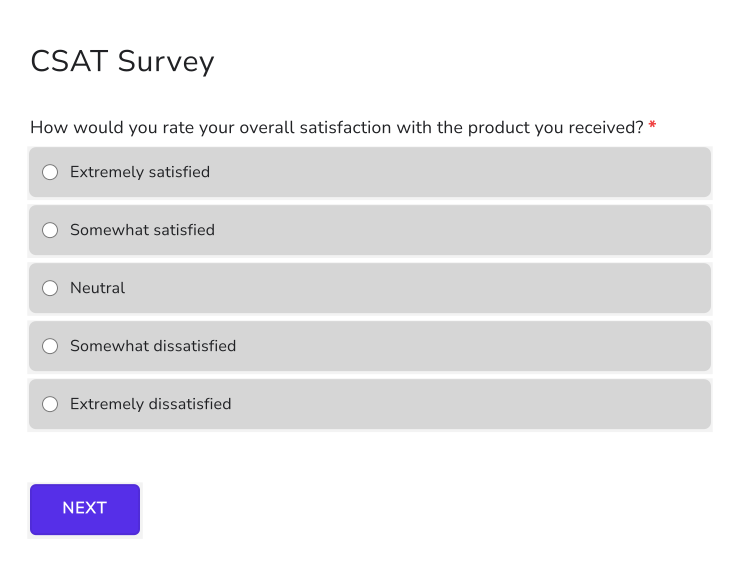
Customized form with pre-filled email and company fields that are hidden from the user. The answers still come with the response.
Summary
If you do not want your users to see or change pre-filled fields, Google Forms does not have any feature to hide questions. With Formfacade, you set the field's Appearance to Hidden or Read only and you still have the data in the responses. Create your form and complete the steps above.
Last updated: