How to calculate the day of the week?
This is a common question from Google Forms users whose form depends on the day. For example, if your restaurant has a different menu each day, your form needs to know what day it is. In Google Forms, your customers have to pick the day themselves and some of them will pick the wrong one. With Formfacade, you can use the getDay() function to find the day of the week for a specified date. It returns a number from 0 to 6, from Sunday to Saturday. Even better, you can hide this question, so your customers do not see it and the day still comes with every response.
Let's start. Create your form and follow the steps below.
Restaurant order form: cycle menu
Let's take the example of a restaurant that offers a cycle menu where the items change based on the day of the week. Instead of asking your customers for the day, you can calculate the day of the week in the form.
- On the page that opens, name your form, click Build form and click Proceed. It can take about a minute.
- You will land on the form's "Preview" tab.
- Click on "Edit" tab

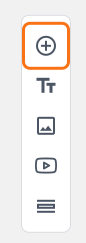
- Click on the + icon (Add field) in the toolbar on the right. A new question will be added.
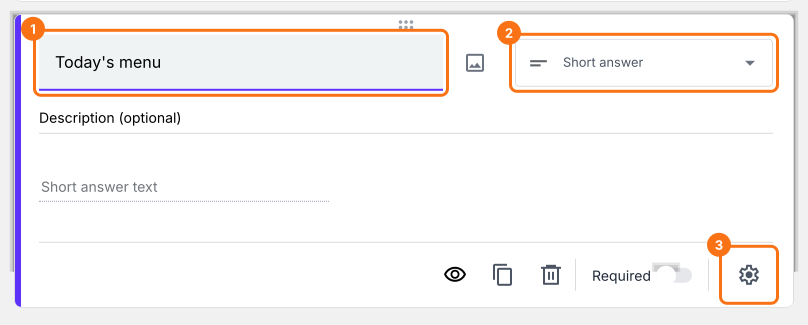
- Enter "Today's menu" as the question. It is already a Short answer.
Click on the ⚙️ icon at the bottom right of the question.
Field settings screen will be displayed. Select the "Answer" tab and write the formula to automatically find the day of the week.
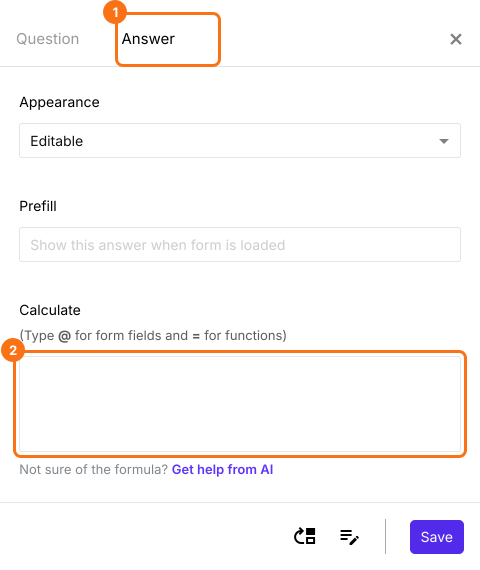
Use getDay() function to calculate the day of the week
getDay() function returns the day of the week for a specified date. This function returns a number from 0 to 6 representing each day of the week from Sunday to Saturday respectively. To determine the day of the week for the current date, we can use the below formula.
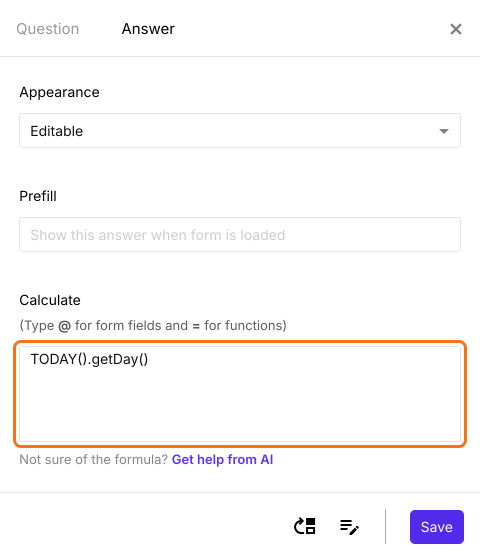
TODAY().getDay()
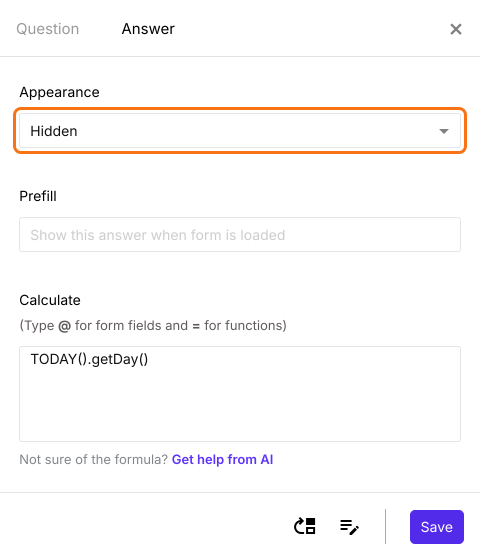
Write the TODAY().getDay() formula in the Calculate option as shown below.
Since we are automatically calculating the day of the week, we can hide this question by changing the appearance to hidden as shown below. Click Save.
Every response now has the day of the week: 0 = Sunday, 1 = Monday and so on. On a Monday, the answer is 1.
Summary
If your menu changes with the day of the week, Google Forms cannot work out the day by itself. With Formfacade, you can use the getDay() function in the Calculate option of a short answer question and hide the question, so the day of the week comes with every response. Create your form and complete the steps above. If you have any questions, write to support.
Last updated: