How to add your logo to Google Forms?
"high quality .jpg image at 800 x 200 px, but it still comes out pixellated"- Google Docs Editors Community
This is a common problem, and 1,535 people on Google's forum have reported it. If you're about to send a Google Form to your customers, it has to look like it comes from your business. You make a header image with your logo, a sharp .jpg at 800 x 200, and Google fits it into its own header, so your logo comes out pixellated and cut off.
In this article, we will show you how to show your logo sharp at the top of your form, with your business name beside it.
1. Import your Google Form
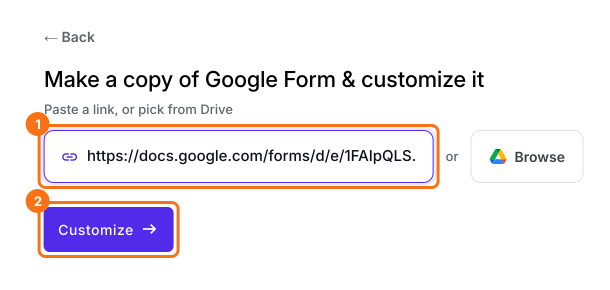
Click Import Google Form, paste your form's link and click Customize. If you have no form yet, click Create a new form instead.
2. Add your logo and business name
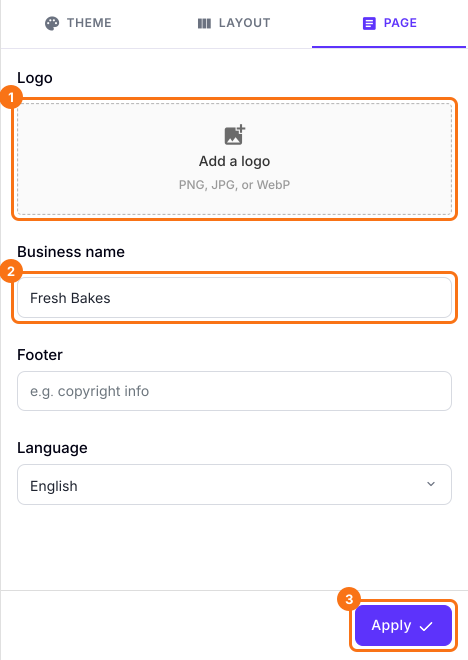
In PREVIEW, click PAGE, then Add a logo, and choose your logo as it is, with no need to make it 800 x 200. Type your name under Business name and click Apply.
3. See your logo on your form
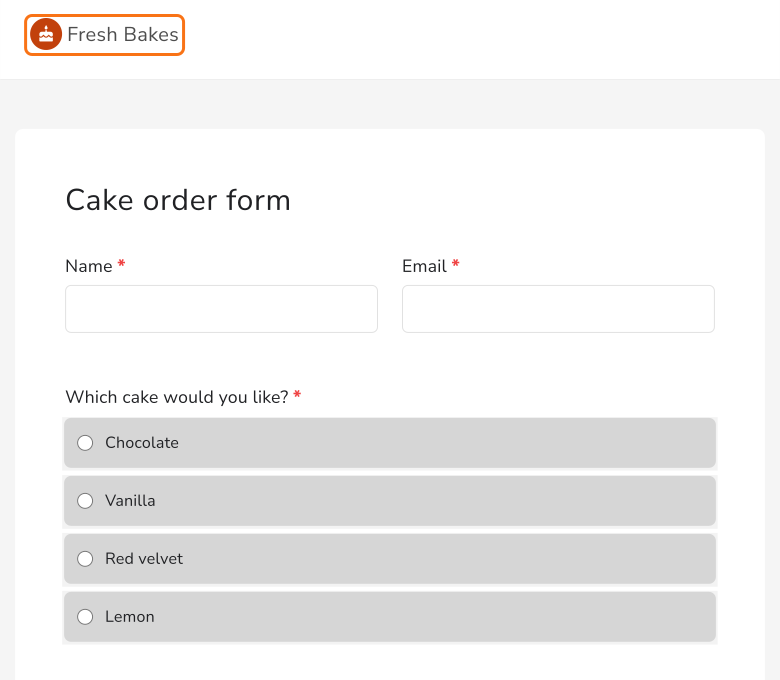
Open SHARE and click Open. Your logo keeps its shape at the top of your form, beside your business name.
Summary
If your form has to look like it comes from your business, a logo in Google's header image comes out pixellated and cut off. With Formfacade, you add your logo and business name, and your logo shows sharp at the top of your form.
Last updated: