How to customize the home page?
This is a common question from people whose website is the first thing new customers see. Its home page has to say who you are and take them to the right form. A Google Form cannot give you a home page. Google Sites can for free, but you build it by hand and add a link for each form yourself. With Neartail, you get a home page that displays a banner and the trending products when you create the website. You can customize it to upload a banner image, add a title and description and edit the call to action button. Even better, you can add quick links, so all your forms are one click away from the same page.
Let's start. Create your site and follow the steps below.
Once you create your site, it will say "Your website is live". Click Edit site and go to Step 4. If you come back to it later, start at Step 1.
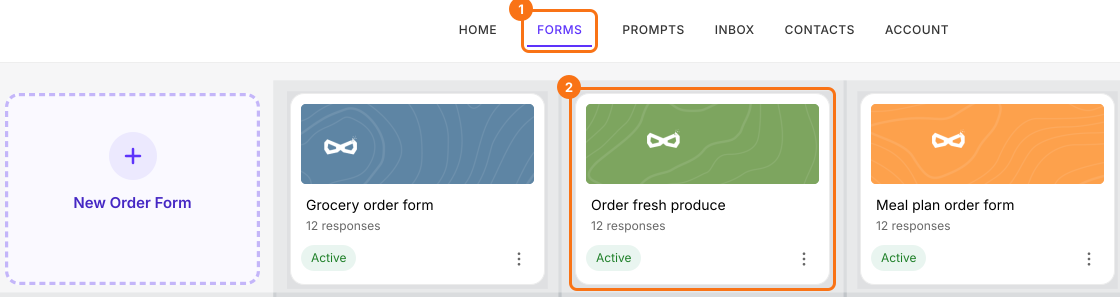
Step 1: Login to Neartail > click Forms > list of your forms will be displayed > click on the form to open it.
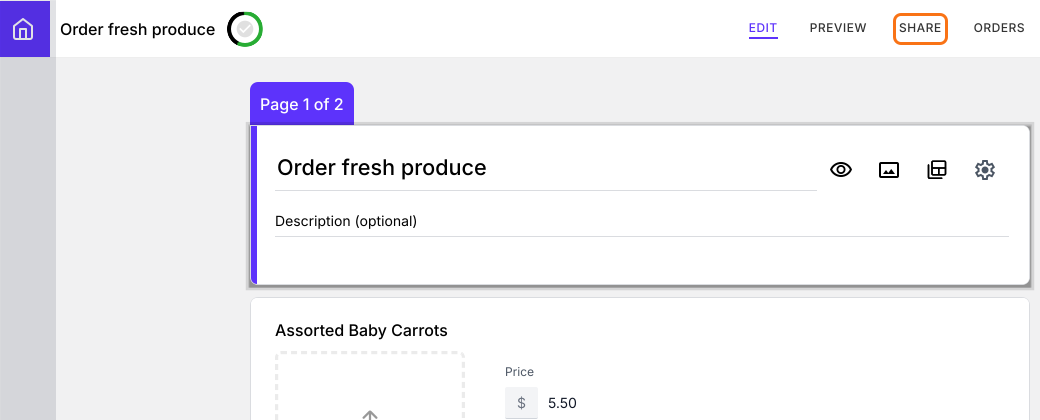
Step 2: Edit page will be displayed > click Share
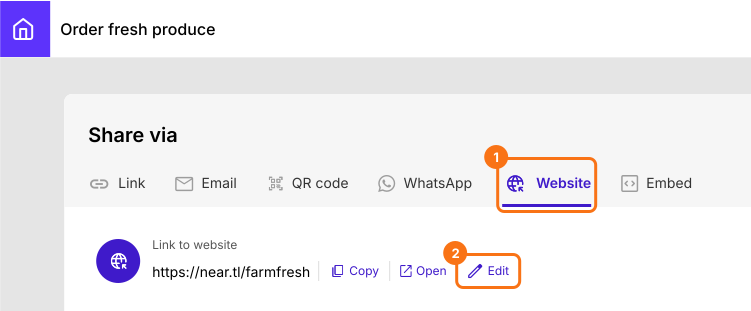
Step 3: In the Share page, click Website > click Edit
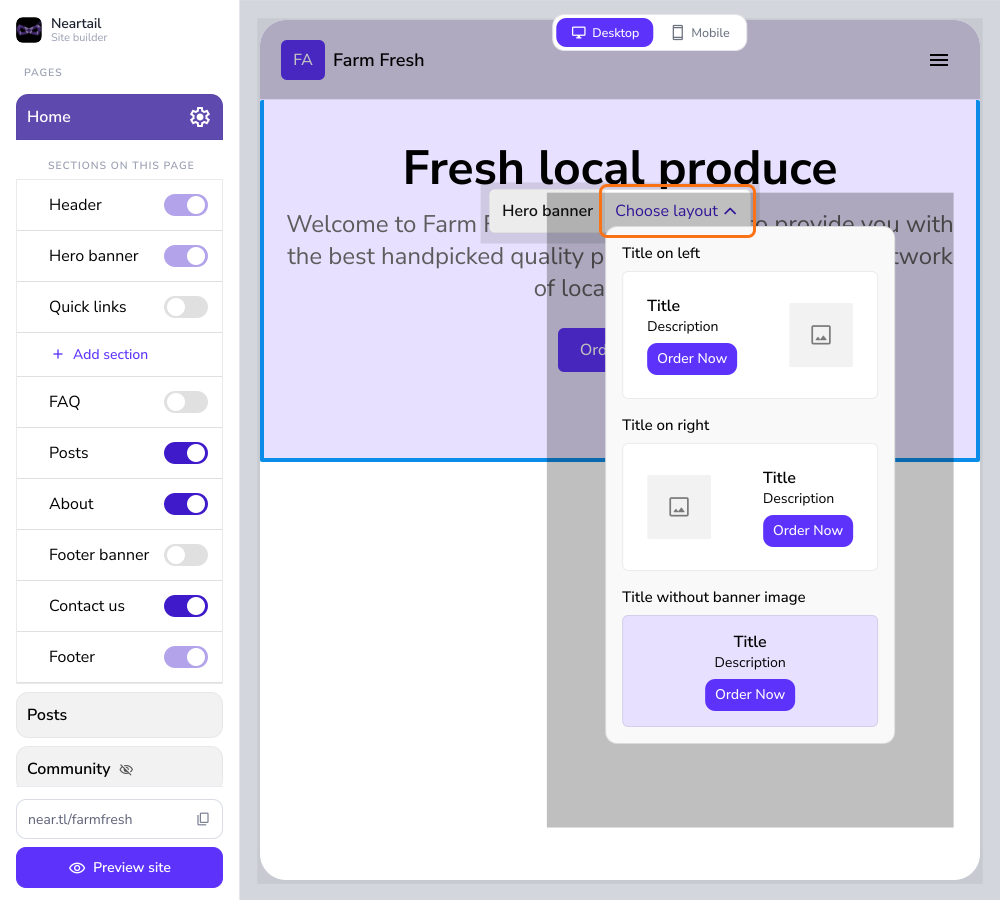
Step 4: Your near.tl website home page will open in a new tab > click on the title or description to customize the home page
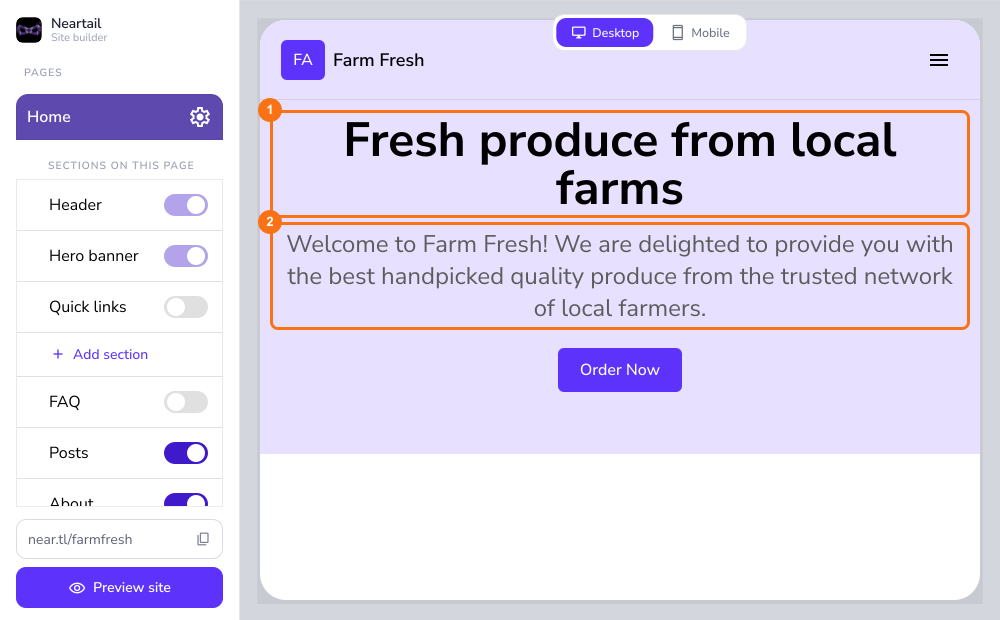
Step 5: You can choose a layout to upload a banner image, add a title, description.
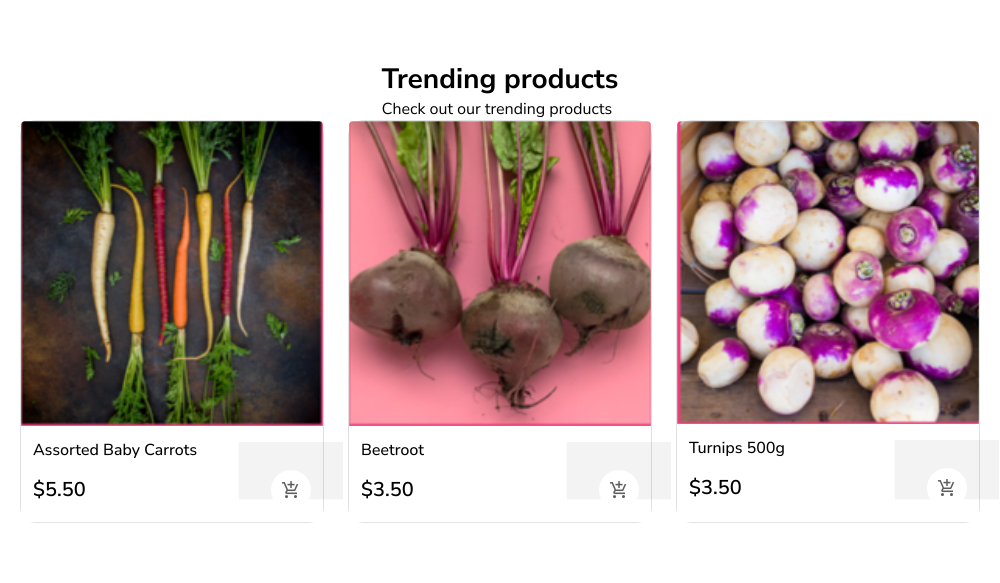
Trending products
The trending products are automatically displayed based on the products ordered by the customers using your order form. If you have less than 3 products, then your order form will be displayed directly in the home page. This is useful if you have created an event registration, booking form etc. Please note that this section cannot be customized.
Call to action buttons
The banner includes a brief description with the call to action button to view the order form. If you have multiple forms, you can add quick links to each of your forms. To add multiple forms, please follow the instructions below.
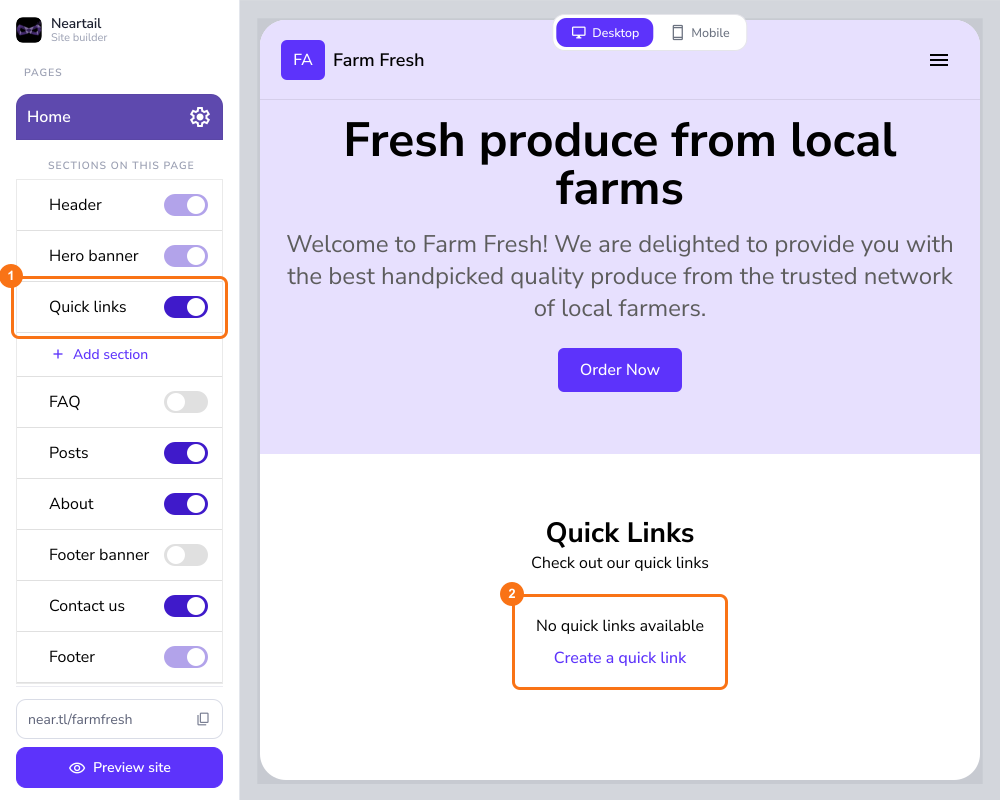
In the Home page, turn on Quick links in the left menu > click Create a quick link
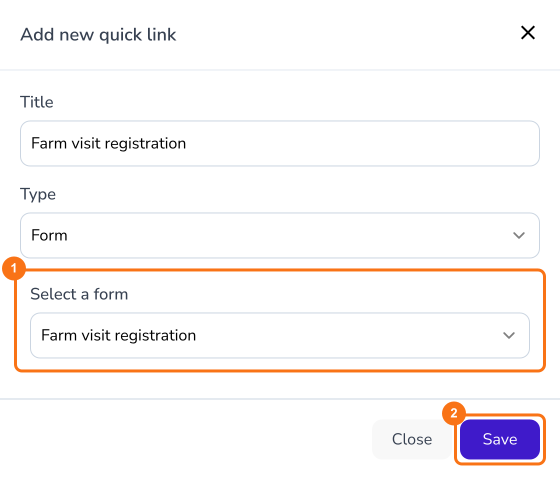
Select the preferred form from the list and click Save. Repeat the steps to add multiple forms.
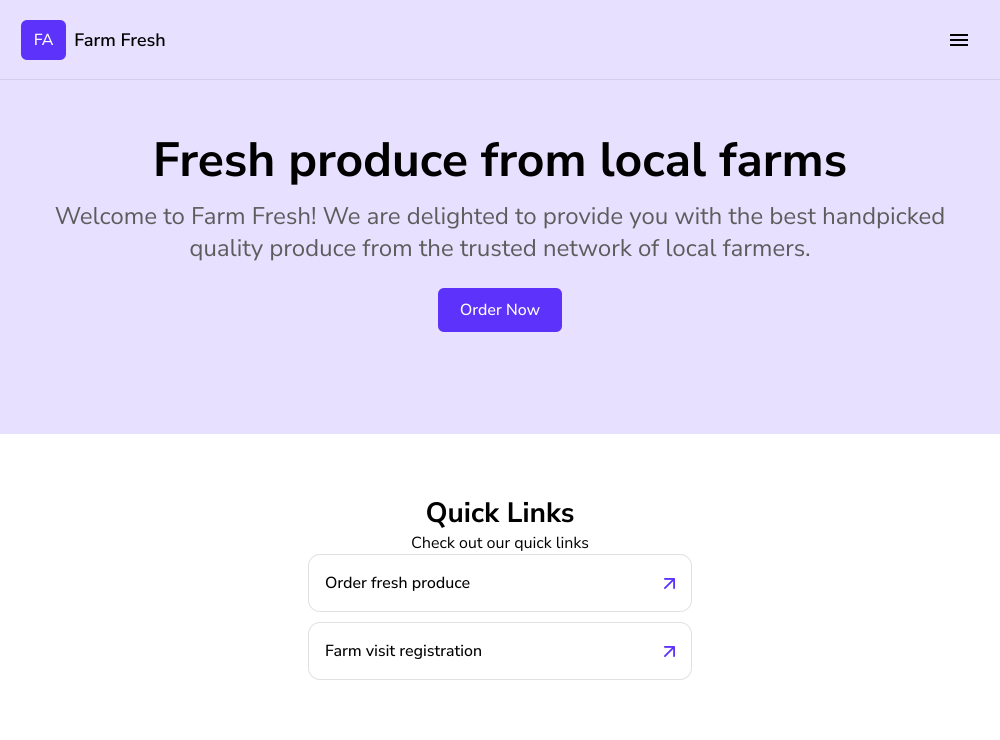
The quick links for the multiple forms will be displayed as shown below.
Summary
If you want a home page that takes customers to the right form, a Google Form cannot give you one. With Neartail, you change the banner and the button on your home page in place and you add a quick link for each of your forms. Create your site and complete the steps above. If you have any questions, write to support.
Last updated: