How to send Google Forms with prefilled answers?
This is a common question from people who send a form to one customer at a time. For example, you may want to add a line just for them. An email generated from a template reads the same for everyone. Google Forms cannot email a prefilled link at all, so you would copy the link into your own email and write it each time. With Formfacade, an email is generated automatically based on the email template that you have set up and you can edit this message before sending it to your customer. Your customer will get your message with their own link and the form will open with their answers already filled in. Even better, you can sync their response to Google Sheets with the details you prefilled.
Let's start. Create your form and follow the steps below.
How to create a prefill link?
- On the page that opens, name your form, click Create form and click Proceed.
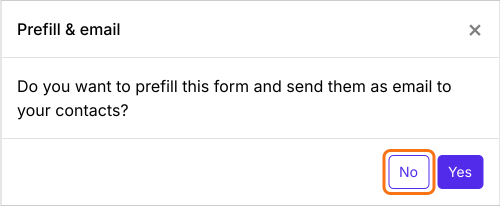
- You will land on the form's "Edit" tab, with the "Prefill & email" dialog open. It asks "Do you want to prefill this form and send them as email to your contacts?". Click No.
- Click on "Share" tab

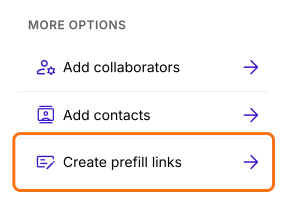
- Click Create prefill links under More options
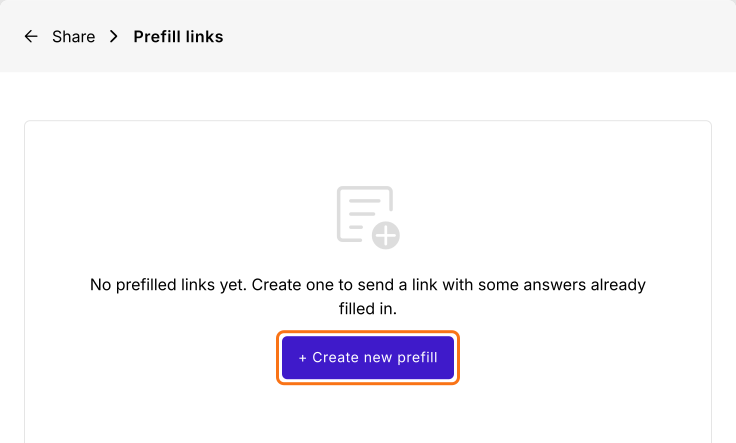
- Prefill links page will be displayed
- Click + Create new prefill
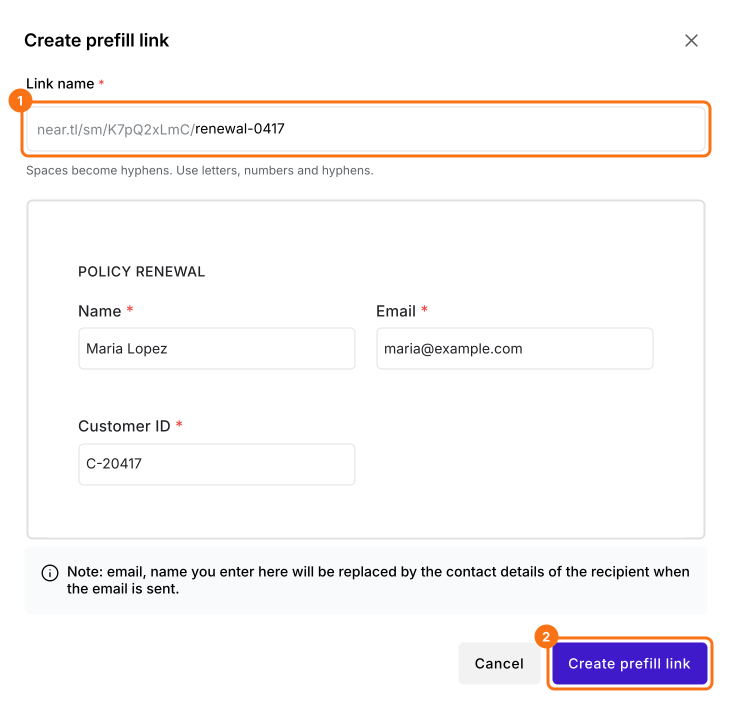
- Enter the unique name for the link
- Enter the answers for the fields to be prefilled
- Click Create prefill link. The dialog's note says that email and name are replaced by the contact's details when an email is sent. On this link, they stay as you typed them.
How to personalize the message?
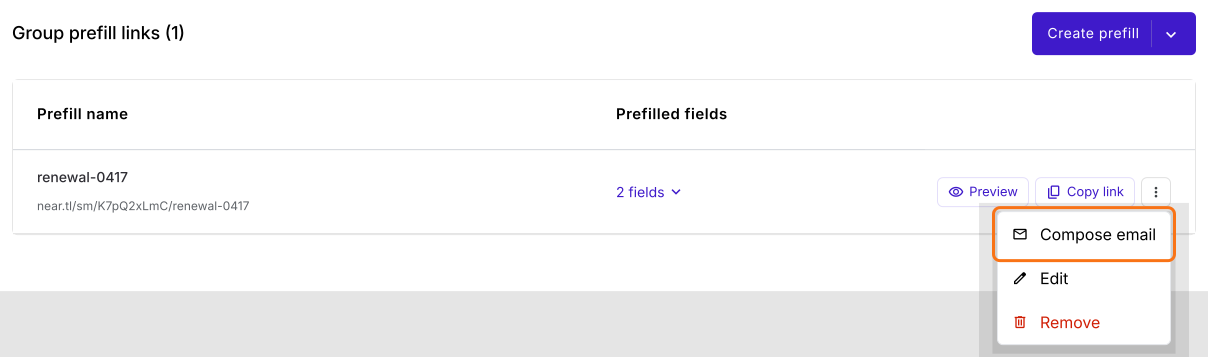
- Click on the three dots ⋮ More icon next to the prefill link
- Click Compose email
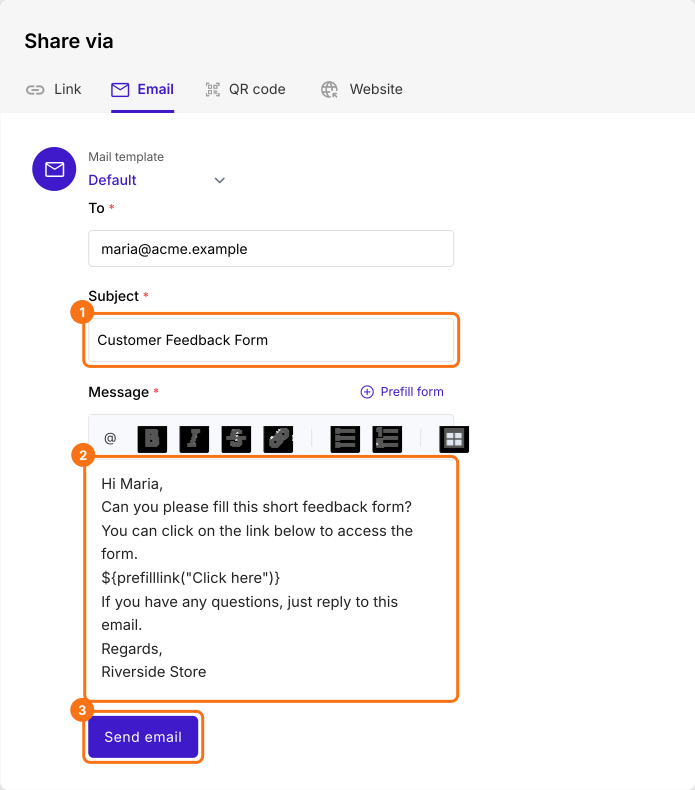
- Subject and message will be automatically generated based on the template
- Enter your customer's email address in To, if it is empty
- Edit the subject, message for this customer
- Click Send email
Summary
Last updated: