How to receive an email notification for new responses?
This is a common question from people who take orders on a form and need to know as soon as a new one comes in. Google Forms can email you that there is a new response, but the email does not show the answers. So you open the form each time to see what was ordered and where it goes. With Neartail, you can receive an email for each new order. You can customize this email to include just the list of products ordered or the complete order information, including customer contact and delivery details. Even better, you can put form fields in the subject line, so you can tell your orders apart in your inbox.
Let's start. Create your form and follow the steps below.
How to set up the email notification?
- On the page that opens, click "Enter your form name". Type your form's name, click Generate and wait about a minute.
- Check the outline it suggests and click Proceed.
- Once you create the form, you will land on the form's "Edit" tab.
- If it asks "Do you want to collect payment on form submit?", click No.
- Click on "Orders" tab

- Click Kanban board

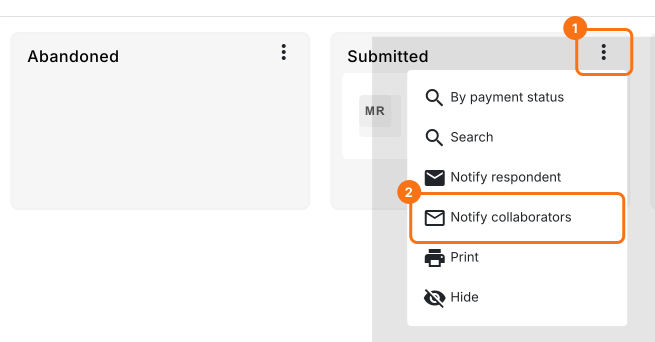
- Click on the ⋮ More icon next to the Submitted status. Click Notify collaborators.
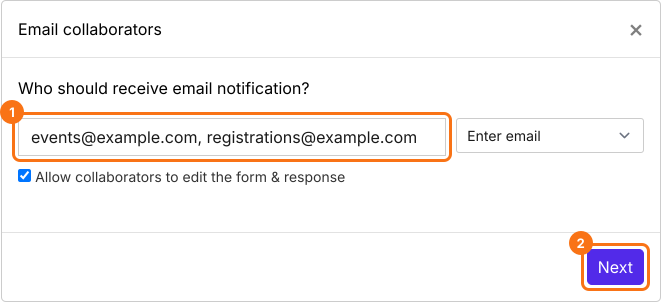
- Email notifications setup wizard will be displayed. Enter the email address and then click on the Next button. To notify multiple users, you can enter a list of email addresses or an email group separated by commas. Allow collaborators to edit the form & response is ticked by default, so untick it if they should only read.
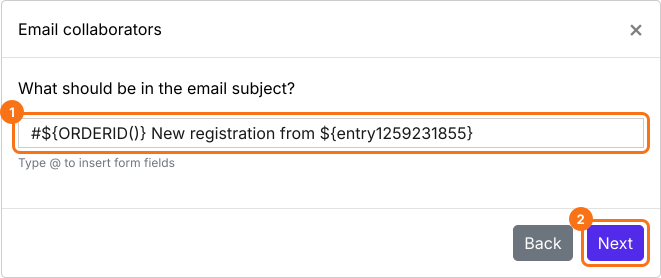
- Configure the subject line for this notification email. You can enter a simple static subject line or you can use the form fields to personalize the subject as shown in the screenshot below. Then click on the Next button.
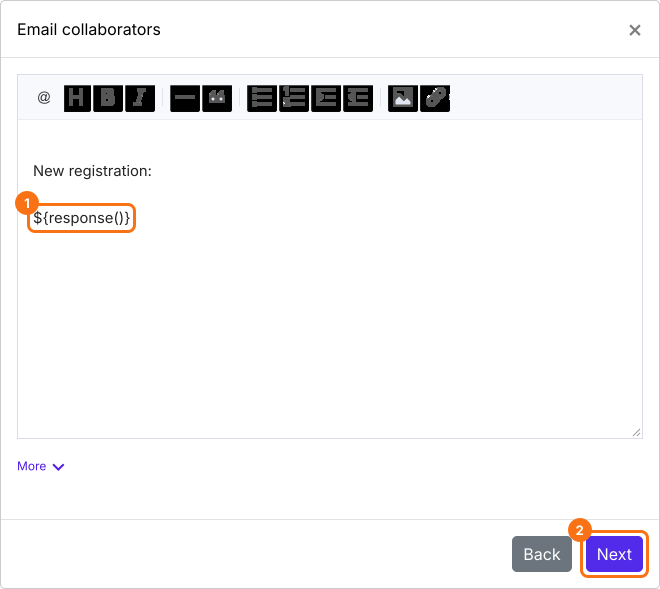
- By default, all the answers will be included in the email. You can customize this message as per your requirements as shown below. Then click on the Next button.
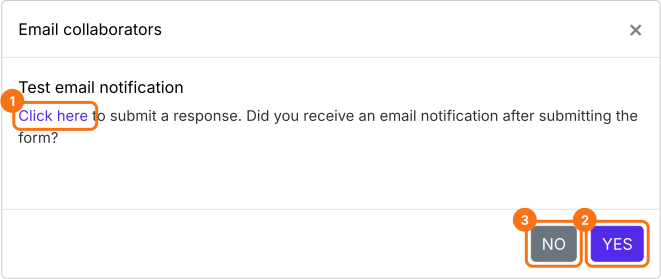
- Click on "Click here" and submit a test response to check if the email notifications are working. If it works, click on the YES button. Otherwise, click on the NO button.
When it says "You are all set!", you will receive this email for each new order. The email can come before the customer has paid, so check that an order is marked paid before you ship it.
Summary
If you need to know as soon as an order comes in, the email from Google Forms does not show the answers. With Neartail, you receive an email for each new order and you can customize it to include the products ordered or the complete order information. Create your form and complete the steps above.
Last updated: