How to automatically calculate the amount based on the answer in the payment form?

"I would like to make a Google form for people to choose different items"- Google Docs Editors Community

This is a common question from Google Forms users who sell workshops or tickets. For example, each workshop on your form might cost a different amount and people want to see what they will pay before they submit. Google Forms lets you type a price beside each answer, but it cannot show the amount due or ask them to pay it. So you work it out afterwards and write to each person. With Neartail, you can calculate the amount based on the answer and collect payments in your Google Form. When someone picks a workshop, the form shows the amount before they submit and they pay that amount. Even better, the responses will be collected on your Google Forms, so you can sync them to Google Sheets and see who picked what.

Let's start. Create your form and follow the steps below.

Setup payments

  • On the page that opens, click "Enter your form name". Type your form's name, click Generate and wait about a minute.
  • Check the outline it suggests and click Proceed.
  • Once you create the form, you will land on the form's "Edit" tab.

The tabs Edit, Preview, Share and Orders, with Edit marked
  • If it asks "Do you want to collect payment on form submit?", click Yes.
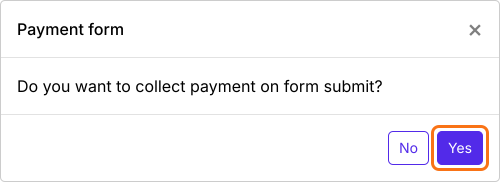
The Payment form dialog asking if you want to collect payment on form submit, with Yes marked
If you imported a Google Form, it makes a copy of your form and it will not ask. If it says "Your form is private or protected", click Next and give access or publish your form in Google Forms and paste that link. Select your currency and click Continue. When it says "Your order form is ready", click Preview your form, then Edit form. Scroll down to Payments disabled at the end of the form and click Enable. Click Enable again in the panel that opens. Your total may be called Amount Due instead of Order Amount.
Payments disabled at the end of the form, with Enable marked
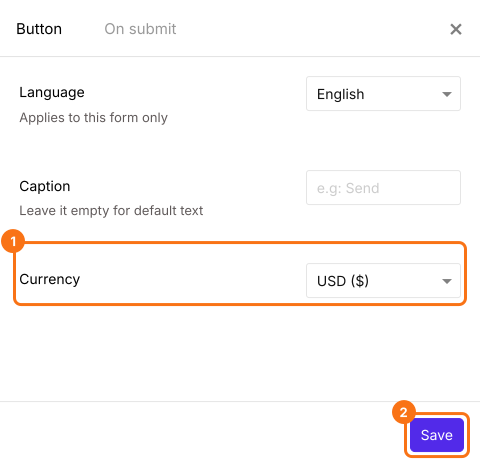
PayPal is not listed in every currency. If you do not see it under Manual payments, close the Payments settings page and click on the gear icon in the After payment row, the last row above the Submit button. Select your currency in Currency and click Save. The form will reload. If it asks "Do you want to collect payment on form submit?" again, click Yes. Otherwise click Edit in the Payments row. Change the currency before you turn on a payment option, because an option you turned on stays on in the new currency.
The Button tab of the panel, with USD selected in Currency, and Currency and Save marked
  • Payments settings page will be displayed. Click on the toggle button next to PayPal under Manual payments, enter your paypal.me username and click Save.
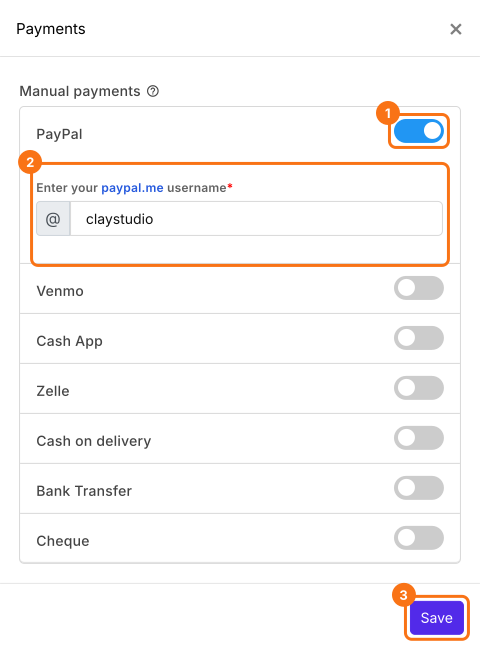
The Payments panel with PayPal turned on under Manual payments, the paypal.me username claystudio filled in and Save marked

Configure payment amount

You can setup your form to collect a fixed amount, dynamically calculate the amount based on the answer or add custom formula to calculate the amount. In this example, we will setup the form to dynamically pick the amount for the field.
  • If the form has products you do not need, click on the product and click on the delete icon at the bottom of its card. If you keep a product with no title or a price of 0, change it in the card.
  • Click on Add product in the toolbar on the right. Enter your question as the title and select Sold by variant.
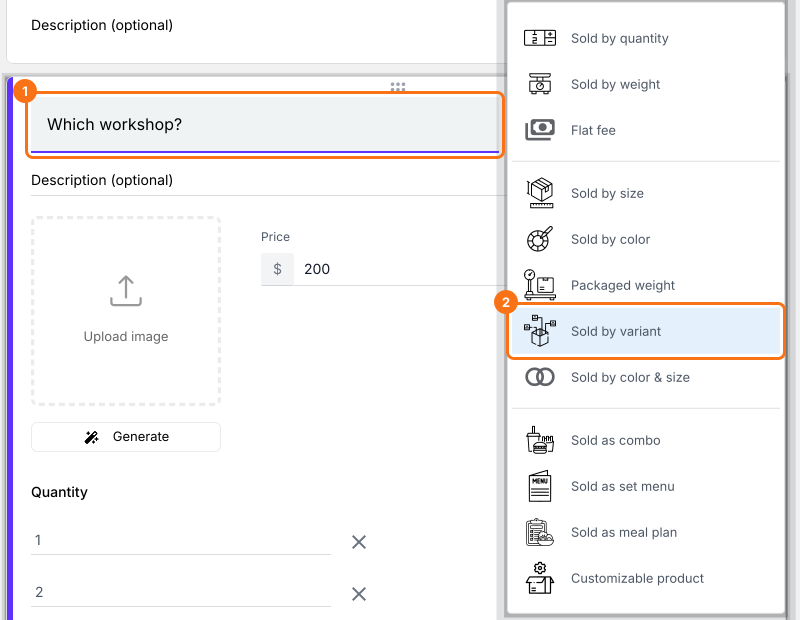
A new product card with the title Which workshop?, with the title and Sold by variant in its list marked
  • Enter each answer as a variant. For example, if each workshop costs a different amount, the variants can be Pottery, Sketching and Writing.
  • Click on the gear icon at the bottom of the card, click Variant price and enter the price of each variant: $250, $220 and $200. Click Save.
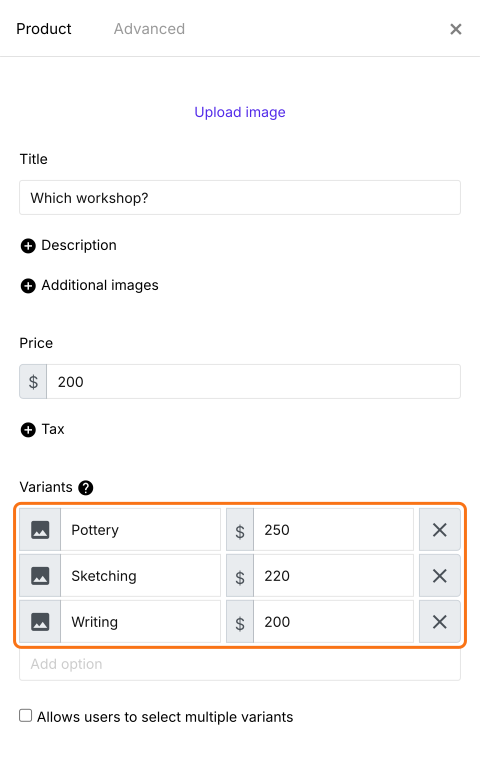
The panel the gear opens for Which workshop?, with Pottery at $250, Sketching at $220 and Writing at $200 marked
  • Click on the Order Amount field, click the Advanced setting icon and click Answer. TOTAL() in Calculate will pick the amount from the price in the answer. Click Save.
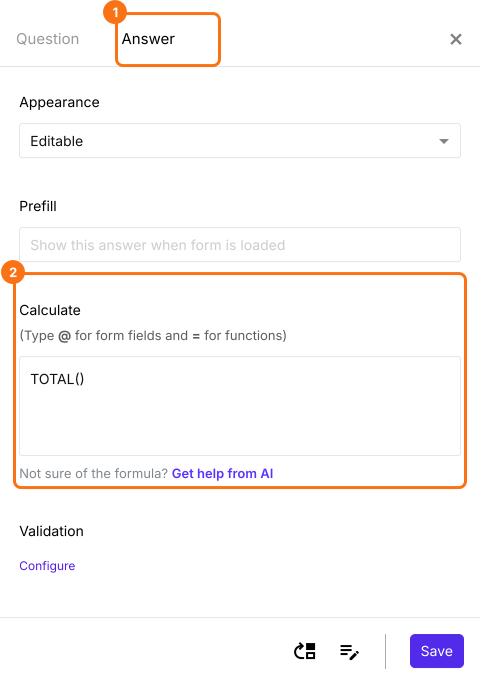
The Answer tab of the Order Amount field, with TOTAL() in Calculate, and Answer and Calculate marked
  • Click on "Preview" tab
The tabs Edit, Preview, Share and Orders, with Preview marked
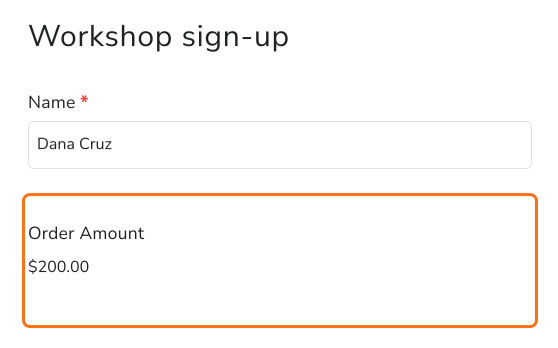
When the user selects Writing, the Order Amount will display $200 before they submit the form. This is the amount they will pay. To check each payment, read How to see who has paid in Google Forms?
Workshop sign-up with the name Dana Cruz and an Order Amount of $200.00, which is marked

Summary

If each choice on your form costs a different amount, a Google Form cannot show the amount due, so you work it out afterwards and write to each person. With Neartail, you write a price in each answer, the form shows the amount due before people submit and they pay that amount. Create your form and complete the steps above. If you have any questions, write to support.

Last updated: