How to accept UPI payments in Google Forms?
This is a common question from people who collect payments in India, where users want to pay with GPay, PhonePe or Paytm. Google Forms lets you type your UPI ID in the form, but it cannot open these apps or show the amount to pay. So you ask for a transaction ID or a screenshot and check each payment by hand. With Neartail, you can enable UPI payments in your Google Form. Your users see the total amount and scan a QR code to pay with GPay, PhonePe, Paytm and other UPI apps. Even better, there is no gateway charge, because the money goes straight from their UPI app to you.
Let's start. Create your form and follow the steps below.
Setup UPI payments
- On the page that opens, click "Enter your form name". Type your form's name, click Generate and wait about a minute.
- Check the outline it suggests and click Proceed.
- Once you create the form, you will land on the form's "Edit" tab.

- If it asks "Do you want to collect payment on form submit?", click Yes.
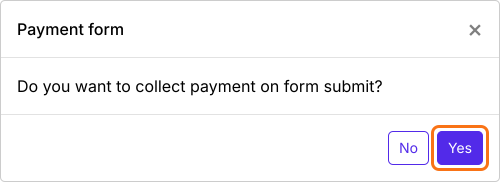
If you imported a Google Form, it makes a copy of your form and it will not ask. If it says "Your form is private or protected", click Next and give access or publish your form in Google Forms and paste that link. Select your currency and click Continue. When it says "Your order form is ready", click Preview your form, then Edit form. Scroll down to Payments disabled at the end of the form and click Enable. Click Enable again in the panel that opens. Your total may be called Amount Due instead of Order Amount.

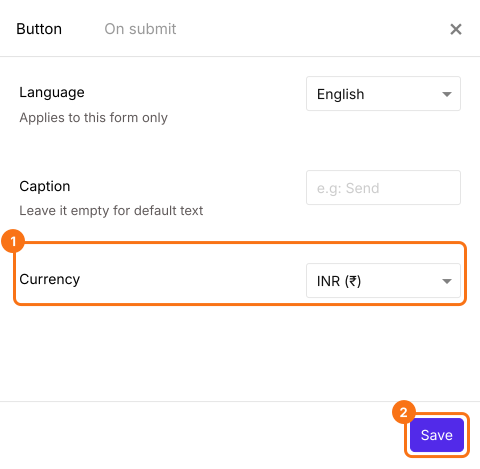
UPI is listed only when your form is in INR. If you do not see it, close the Payments settings page and click on the gear icon in the After payment row, the last row above the Submit button. Select INR in Currency and click Save. The form will reload. If it asks "Do you want to collect payment on form submit?" again, click Yes. Otherwise click Edit in the Payments row. Change the currency before you turn on a payment option, because an option you turned on stays on in the new currency.
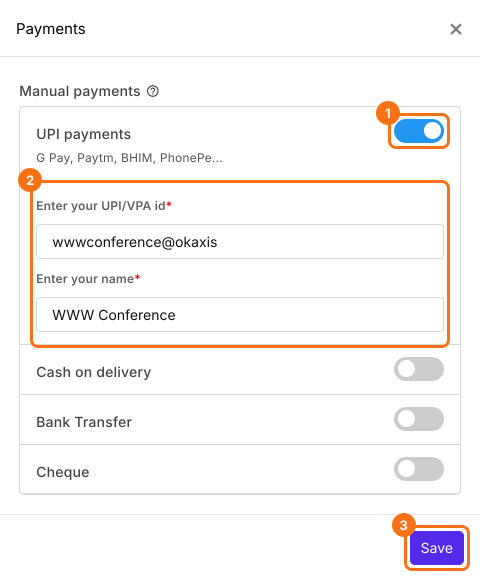
- Payments settings page will be displayed. Click on the toggle button next to UPI payments under Manual payments, enter your UPI ID and your name and click Save.
Configure payment amount
You can setup your form to collect a fixed amount, dynamically calculate the amount based on the answer or add custom formula to calculate the amount. In this example, we will setup the form to dynamically pick the amount for the field.
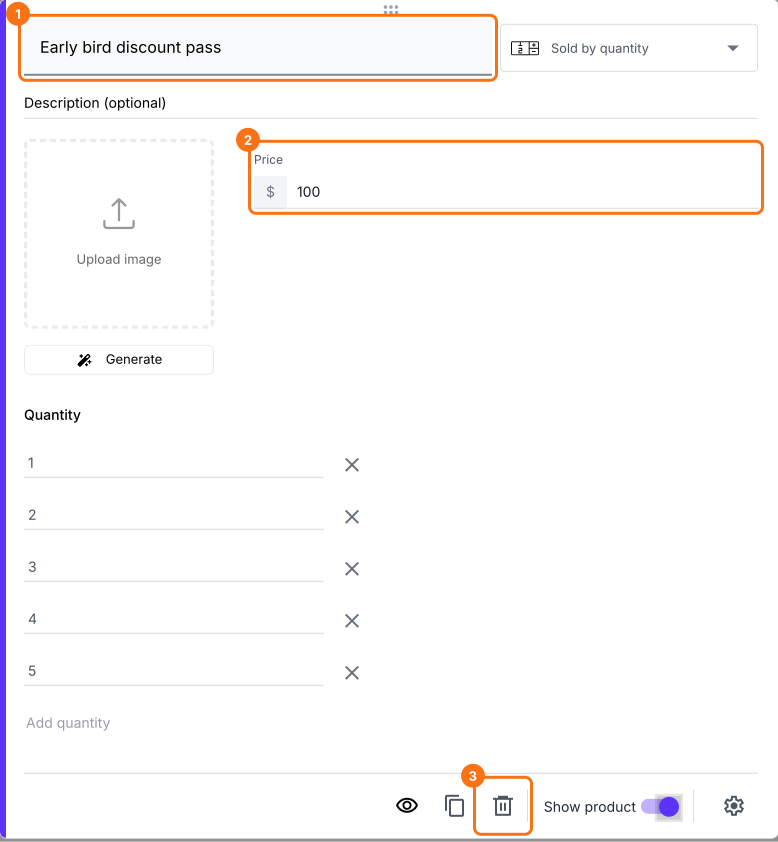
- Check your products first. If the form has products you do not need, click on the product and click on the delete icon at the bottom of its card. If a product has no title, the wrong title or a price of 0, change it in the card.
- Click on the Configure key fields icon, the notebook in the last After page row.
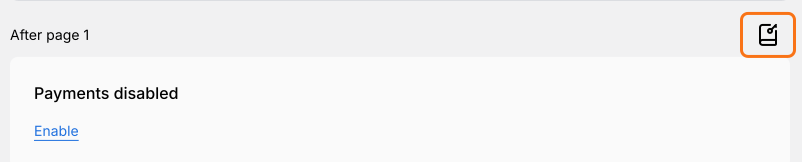
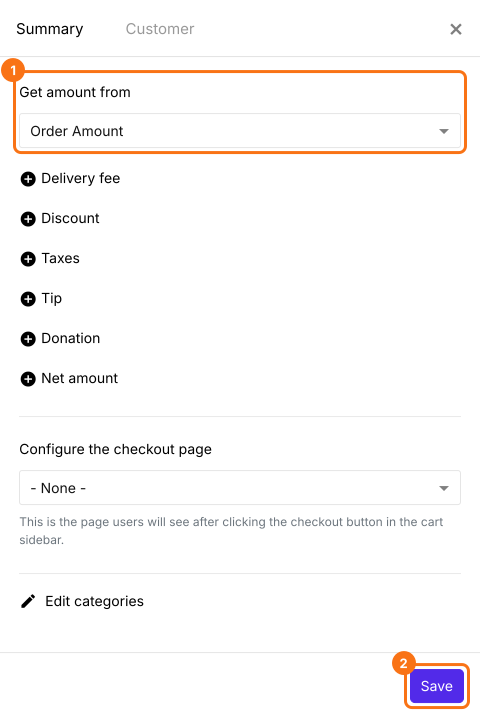
- Order Amount is already selected in Get amount from and it adds up by itself, so you do not have to write a formula. Click Save.
- Click on "Preview" tab

When a user clicks Submit, they will see the Total Amount. They scan the QR code to pay you with their UPI app. Then they click Mark as Paid. If you have turned on more than one payment option, they will first select the payment method and click Proceed to payment. To check each payment, read How to see who has paid in Google Forms?
Summary
If your users want to pay with GPay, PhonePe or Paytm, a Google Form cannot open these apps or show the amount to pay. With Neartail, you enable UPI payments in the Payments settings and users can pay with their UPI app when they submit the form. Create your form and complete the steps above. If you have any questions, write to support.
Last updated: