How to share google forms responses without edit permissions?
This is a common question from Google Workspace users whose team only needs to read the responses. Adding them as collaborators on your form gives them more than you want, as they can change your questions and delete responses by mistake. A collaborator on a form is an editor, so you cannot make them read-only on the form in Google Forms. Instead of adding your team members as collaborators in Google Forms, you can sync the form responses to Google Sheets and then add them as collaborators in Google Sheets. With Formfacade, you can do this from the Responses tab. Even better, you can also add them as Viewers in Formfacade, who can view the responses and reports.
Let's start. Create your form and follow the steps below.
How to sync form responses to Google Sheets?
- On the page that opens, name your form, click Embed form and click Proceed. It can take about a minute.
- You will land on the form's "Share" tab, on Embed. The top bar may say "Blank Formfacade form" until you reload the page.

- Click Link, then click Open to open your form
- Fill the form and submit it, so that you have a response to sync
- Click on "Responses" tab

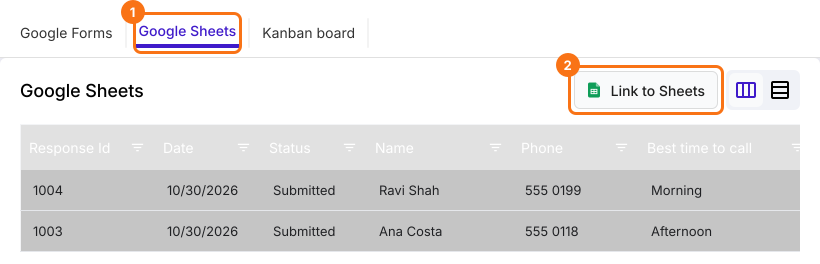
- Click Google Sheets
- Click Link to Sheets
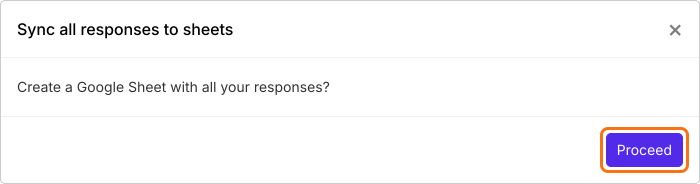
- "Sync all responses to sheets" popup will be displayed. Click Proceed
- When your responses have synced, click View sheets to open your Google Sheet
The button will now say Sync to Sheets. A new response reaches your Google Sheet only when you click Sync to Sheets, so click it when you want your sheet up to date.

How to share Google Sheets with read-only permissions?
Once you have synced your form responses to Google Sheets, you can use the SHARE option in Google Sheets to add collaborators and specify viewer access.
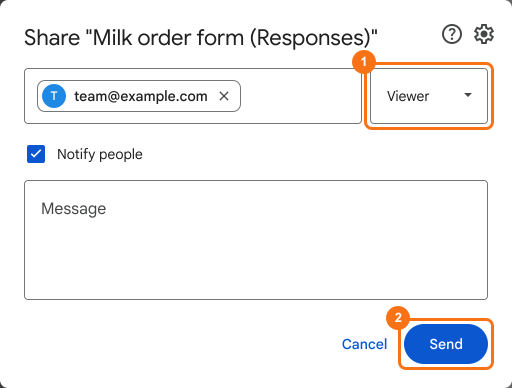
- Click Share
- Share screen will be displayed
- Enter the email address or groups you want to share this sheet with
- Choose Viewer or Commenter access for each of the email address & groups
- Click Send
You can also add your team as Viewers in Formfacade, who can view the responses & reports. Read How to share your form with collaborators?
Summary
If you add your team as collaborators in Google Forms, they can also edit questions and delete responses. Instead, you can sync the form responses to Google Sheets from Formfacade and share the sheet with Viewer or Commenter access. Create your form and complete the steps above. If you have any questions, write to support.
Last updated: