How to customize the confirmation message shown after form submission?
This is a common question from Google Forms users whose respondents want to know what happens next. For example, on a feedback form or an order form, the default message only says that their response was recorded. It does not thank them or tell them when they can expect an update, so some of them write to you to ask or fill in the form again. Google Forms lets you edit this message in its Settings, but it can only show the one message to everyone. With Formfacade, you can change the message from the Submit setting. Your users will see your message when they submit. Even better, you can send them to your own thank-you page instead.
Let's start. Create your form and follow the steps below.
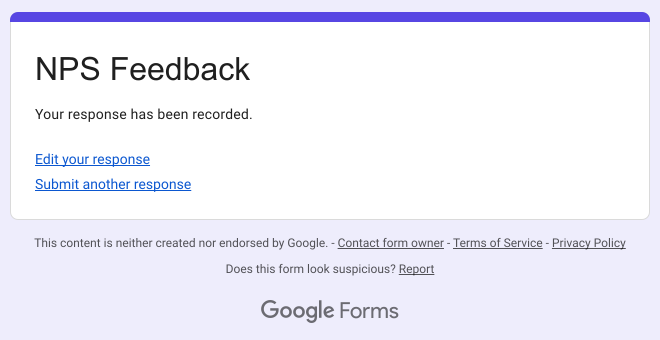
The default confirmation message shown after form submission is "Your response has been recorded."
How to customize the message?
When users submit a form, they get a confirmation message. You can update this default message to make it more meaningful for your respondents. For example, when the user submits their feedback, you can add a thank you note and inform when they can expect an update from you.
- On the page that opens, name your form, click Embed form and click Proceed. It can take about a minute.
- You will land on the form's "Share" tab, on Embed. The top bar may say "Blank Formfacade form" until you reload the page.
- Click on "Edit" tab

- Go to the end of your form
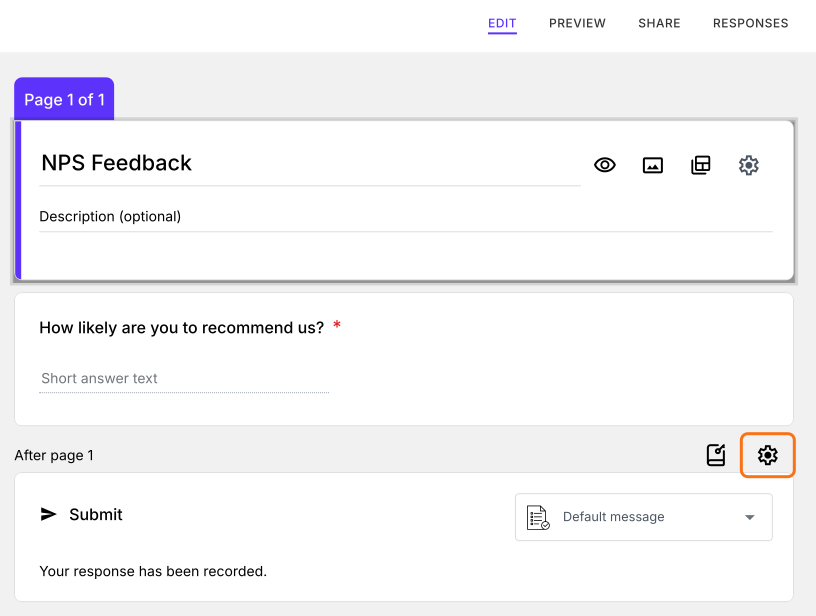
- Click on the ⚙️ icon on the last "After page" row, just above Submit
- If it asks "Button not configured!", click No
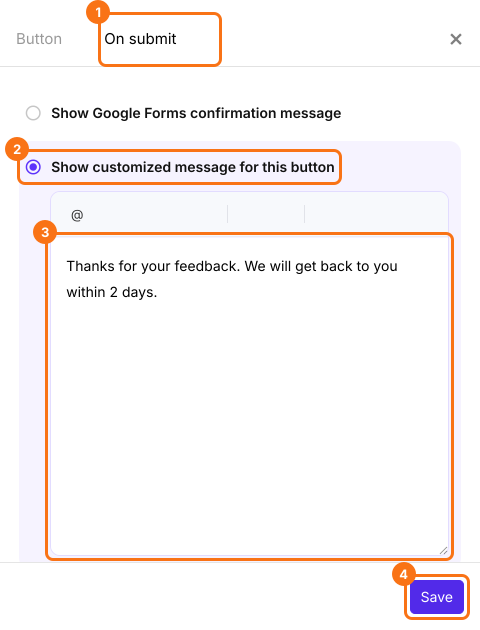
- Click on the "On submit" tab
- Select "Show customized message for this button"
- Enter your message
- Click on Save
The Submit card may still say "Default message" until you reload the page. When users submit your form, they will see your message.
Summary
If the default message does not tell people what happens next, they are left waiting. With Formfacade, you click on the ⚙️ icon on the last After page row, select On submit, select Show customized message for this button, enter your message and click on Save. Create your form and complete the steps above.
Last updated: