How to add response validation to a question in Google Forms?
This is a common question from Google Forms users who need clean answers. For example, you ask for an email address or a phone number and some people type it wrongly. You find out only when you try to use the answer and by then you cannot reach them. Google Forms lets you add response validation to a short answer, a paragraph or checkboxes, but not to a date. With Formfacade, you can add response validation to restrict the answers that users can enter for a question. Your users are told before they submit. Even better, you can also allow only past dates, only future dates or specific days of the week on a date question.
Let's start. Create your form and follow the steps below.
Add response validation to a question
- On the page that opens, name your form, click Embed form and click Proceed. It can take about a minute.
- You will land on the form's "Share" tab, on Embed. The top bar may say "Blank Formfacade form" until you reload the page.
- Click on "Edit" tab

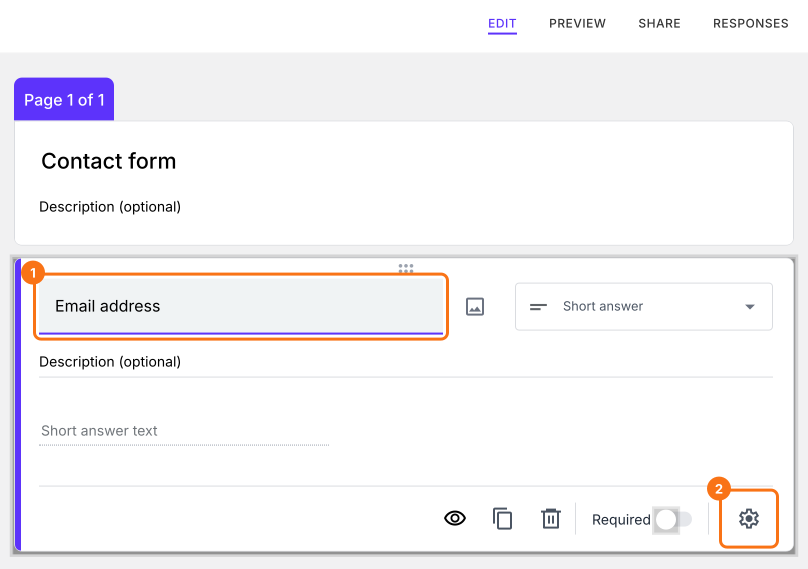
- Click on the question
- Click on the ⚙️ icon at the bottom of the question
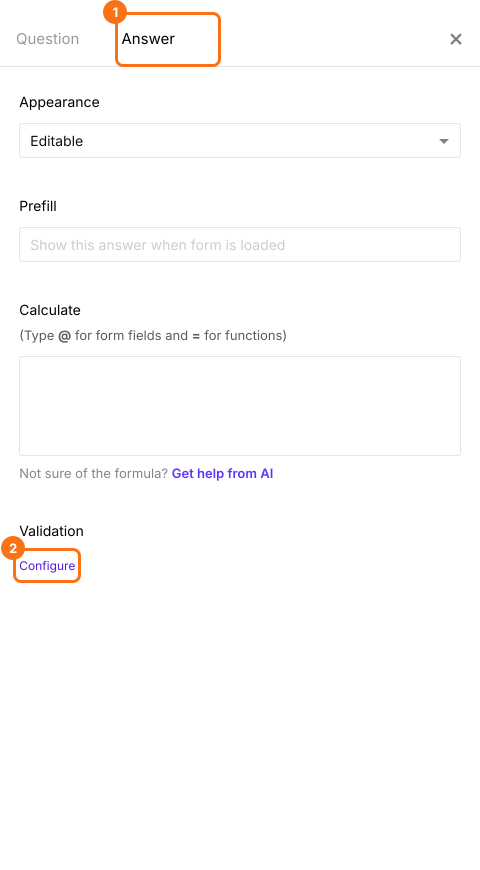
- Click on the Answer tab
- Click Configure under Validation
- Add the required response validation
- Click Save
For example, select Text and then Email for an email address question. This validation will check if the users are entering a valid email address format. You can enter your own message in Custom error text. When someone enters an answer that does not fit, the form shows your message and does not go on.
Response validation by question types
Short answer: You can use this question to collect names, email addresses, phone numbers, website url & more. You can set rules to get the answers you need.
Paragraph: You can use this question to allow users to write long answers with one or more paragraphs. By default, this does not have any character or word limit, but you can use the response validation option to limit responses to specified number of characters or words.
Checkboxes: You can use this question to allow users to select multiple answers from the available choices. You can add a response validation to limit the number of answer choices that users can select in a checkbox question. You can make users select at least a certain number of answers, exactly select the specified number of answers or select at most a certain number of answers.
Date: You can allow only past dates, only future dates, future dates with a lead time, dates between two dates or specific days of the week or exclude specific dates.
Multiple choice, dropdown, linear scale, grid and time questions do not have validation.
Summary
If people can type anything in an answer, you will get answers that you cannot use. With Formfacade, you click on the question, click on the ⚙️ icon, click on the Answer tab and click Configure under Validation and the form checks the answer before it is submitted. Create your form and complete the steps above.
Last updated: