How to assign points for a checkboxes question?
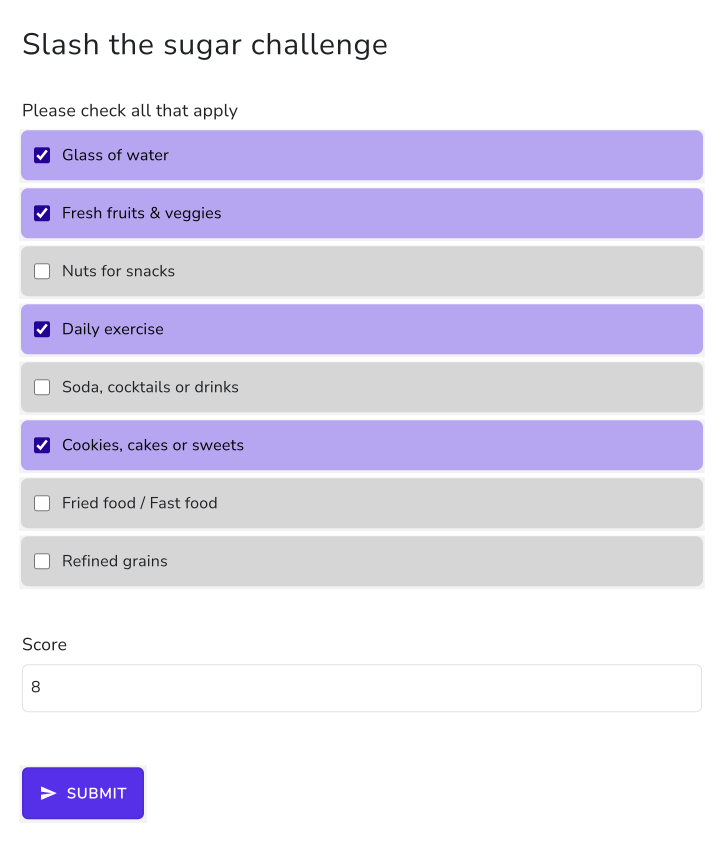
This is a common question from Google Forms users who track daily habits. For example, you might run a slash the sugar challenge with a checkboxes question, where each habit has its own points and some of those points are negative. A quiz in Google Forms gives points only when the correct answers are selected, so it cannot add up different points for each selected answer. You end up working out every score by hand in the sheet. With Formfacade, you can use the SCORE function to assign points for the answer choices in the checkboxes question and calculate the score. SCORE function adds all the points for the answer choices selected by the user. Each person will see the score as they tick their habits. Even better, the form will have your own branding instead of Google's, so the challenge looks like your own.
Let's start. Create your form and follow the steps below.
How to assign points using the SCORE function?
- On the page that opens, name your form, click Create form and click Proceed.
- You will land on the form's "Edit" tab. The "Assign points" dialog opens about 15 seconds later, so wait for it.

- It asks "How do you want to set up scoring?". AI score setup is picked. Click Proceed.
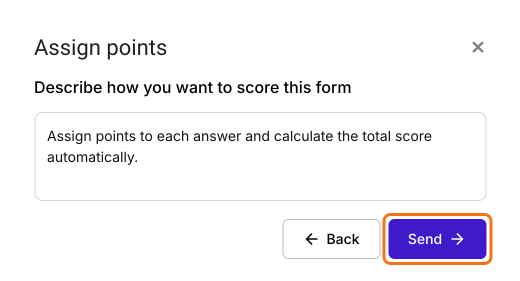
- "Describe how you want to score this form" is filled in. Click Send and click Next.
- You're all set message will be displayed. Click the × to go back to the "Edit" tab.
- Click on a question and change it to Checkboxes in the list of question types. Enter your answer choices. Delete the questions you do not need.
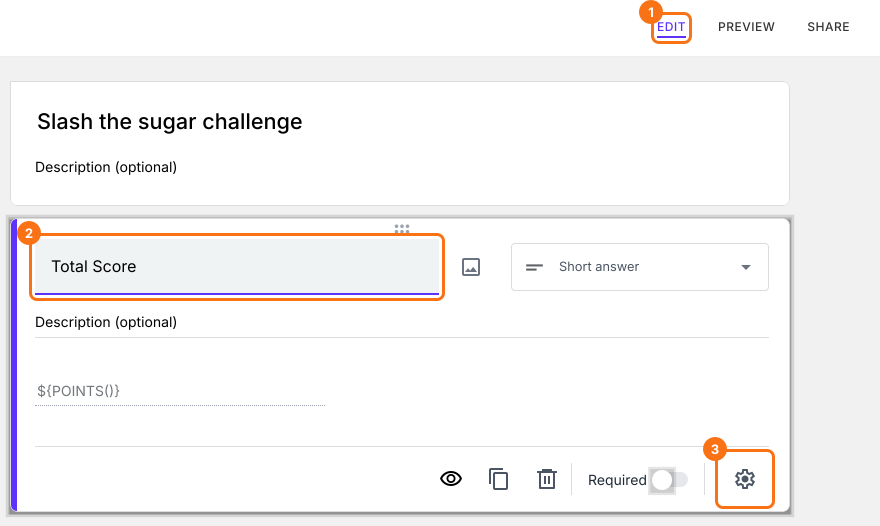
- Your form already has a Score question, which may be named Total Score. Click on the score question, then click the ⚙️ icon.
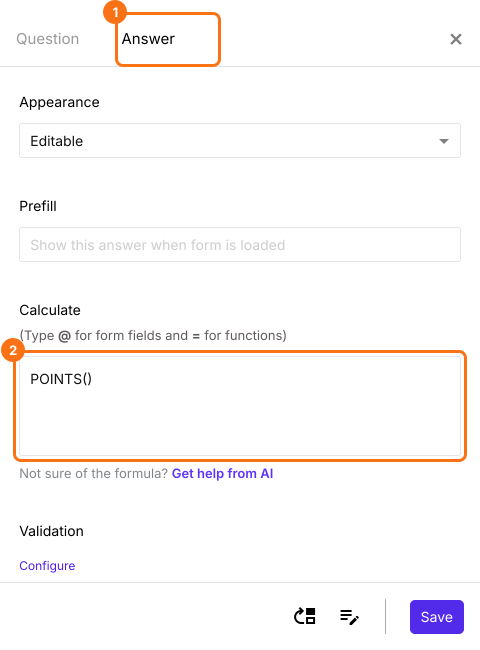
- Field settings screen will be displayed. Select the "Answer" tab and write the formula to assign points and calculate the score.
SCORE function
- Glass of water = 1
- Fresh fruits & veggies = 2
- Nuts for snacks = 2
- Daily exercise = 10
- Soda, cocktails or drinks = -3
- Cookies, cakes or sweets = -5
- Fried food / Fast food = -6
- Refined grains = -1
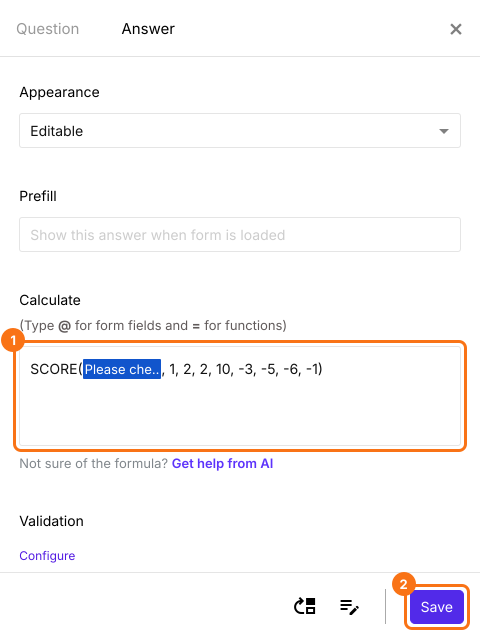
- SCORE(entry#id, 1, 2, 2, 10, -3, -5, -6, -1)
- The Calculate option already has POINTS(). Delete it and write the SCORE function in the Calculate option as shown below and click Save.
How to show this score after submit?
- Scroll down to the end of the form and click on the gear icon on the last "After page" row, above the Submit button. It says "After page 1" on a form with one page. The panel can take a few seconds to open, so click once.
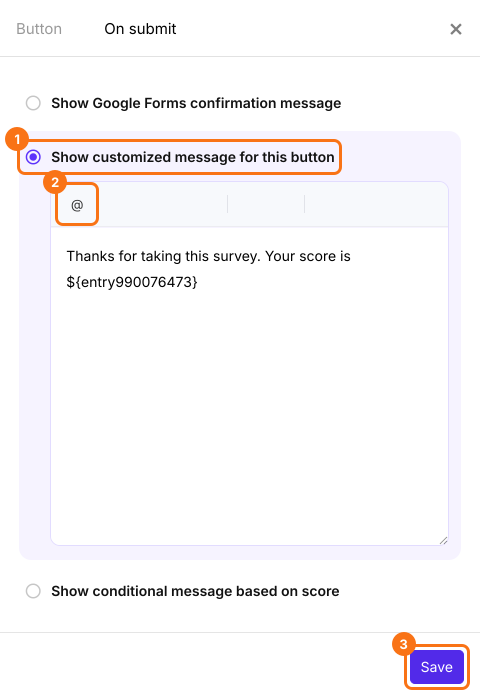
- Button settings page will be displayed. Click On submit. Select Show customized message for this button.
- Delete the message that is there and type your own. Click on the @ option, select the Score question and click Save.
Summary
Last updated: